ipsw Walkthrough Part 1 - The Swiss Army Knife for iOS/MacOS security research
All parts in this series
- 1 ipsw Walkthrough Part 1 - The Swiss Army Knife for iOS/MacOS security research
- 2 ipsw Walkthrough Part 2 - The Swiss Army Knife for iOS & MacOS security research
In this first blog post about ipsw tool we will see its basic uses and how it can make our life a lot easier. ipsw is a tool that can be used for *OS research, it provides a lot of functionalities related to dyld_shared_cache, DeviceTree, kernelcache, Img4, etc. which are all of interest to security researchers.
We will go over each of command to see what it does and how to use it, but before we do that, we first need to get ipsw. We can build ipsw from the source or we can download one of the prebuilt binaries available on the GitHub repository.
After we have downloaded ipsw, to confirm that everything is working okay and to see the list of the options, we will type --help .
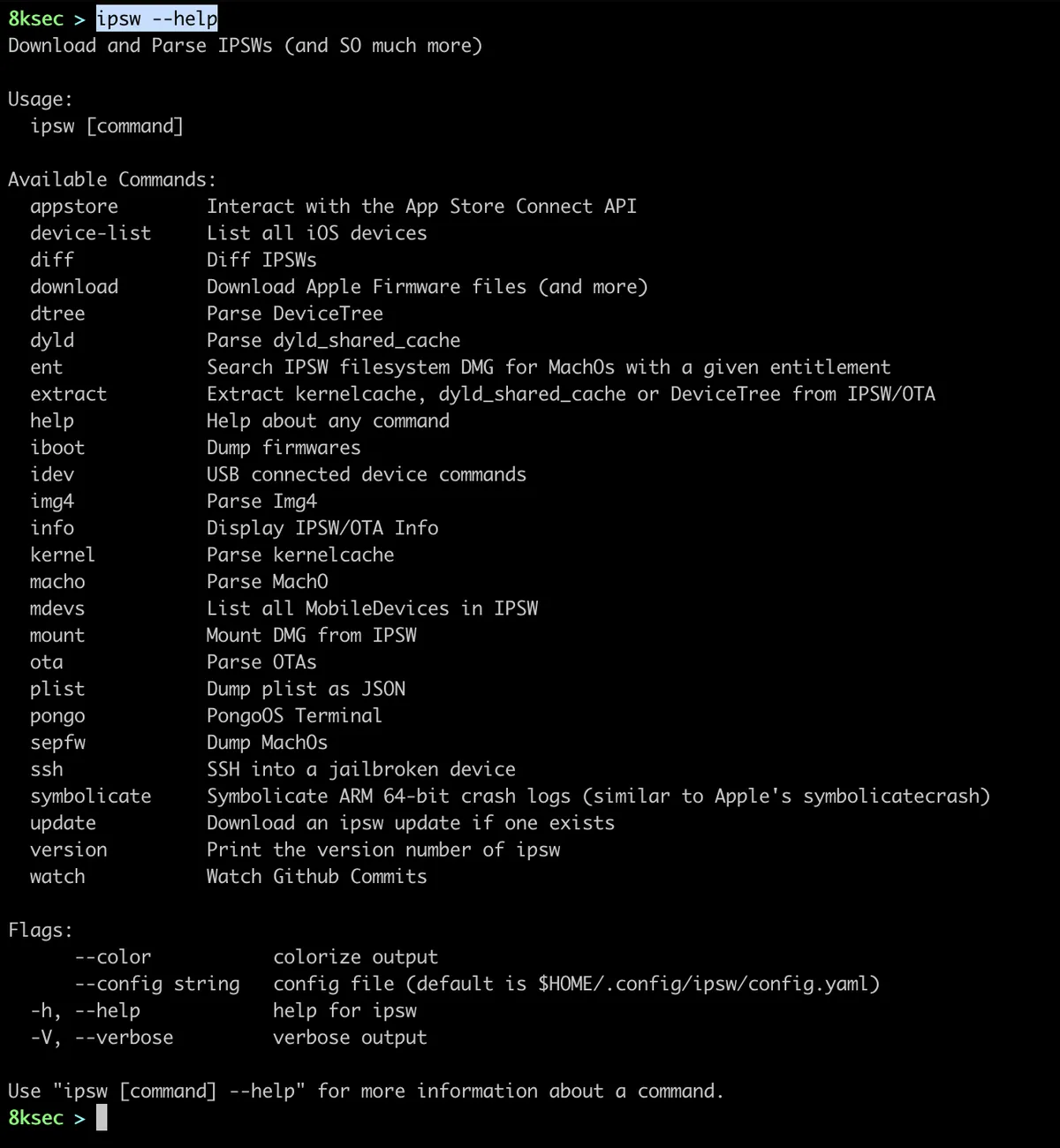
appstore
appstore is the first command that ipsw provides and it allows us to interact with the App Store Connect API.
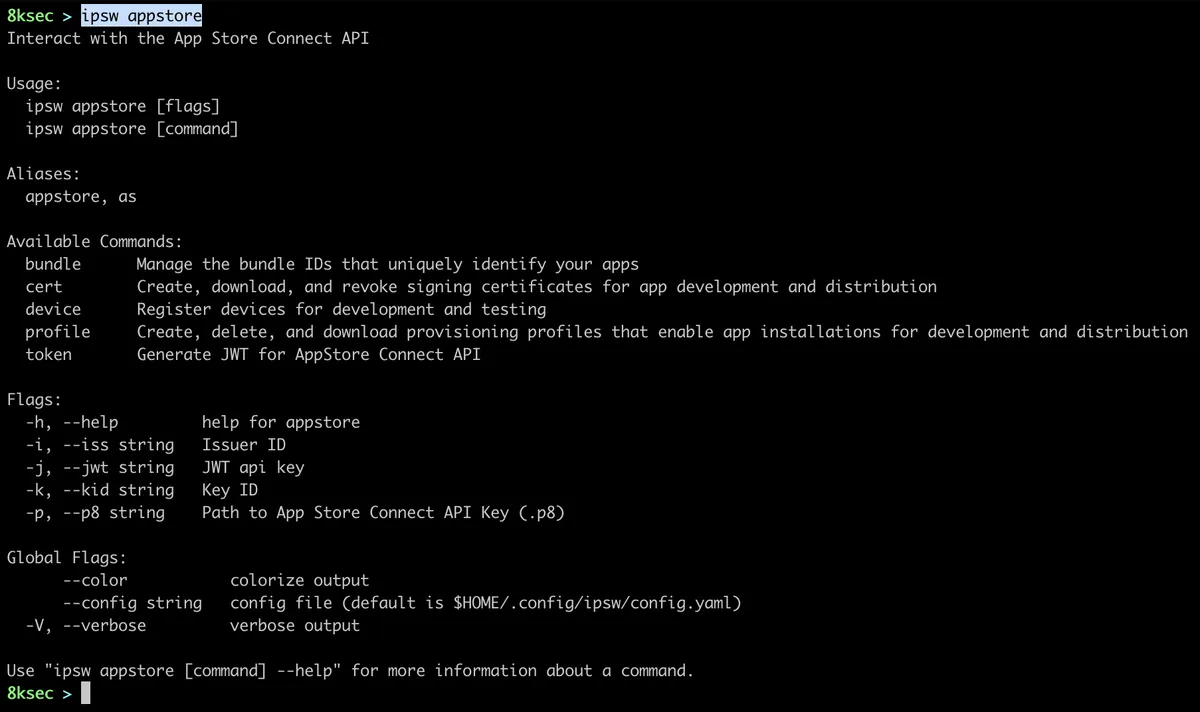
ipsw appstore provides:
- managing bundle IDs of the created applications
- management of signing certificates
- listing and registering new devices
- managing provisioning profiles
- generating jwt token that we can use to interact with
App Store Connect API.
A lot of ipsw commands require App Store Connect API key and we can obtain one by visiting https://appstoreconnect.apple.com/access/api.
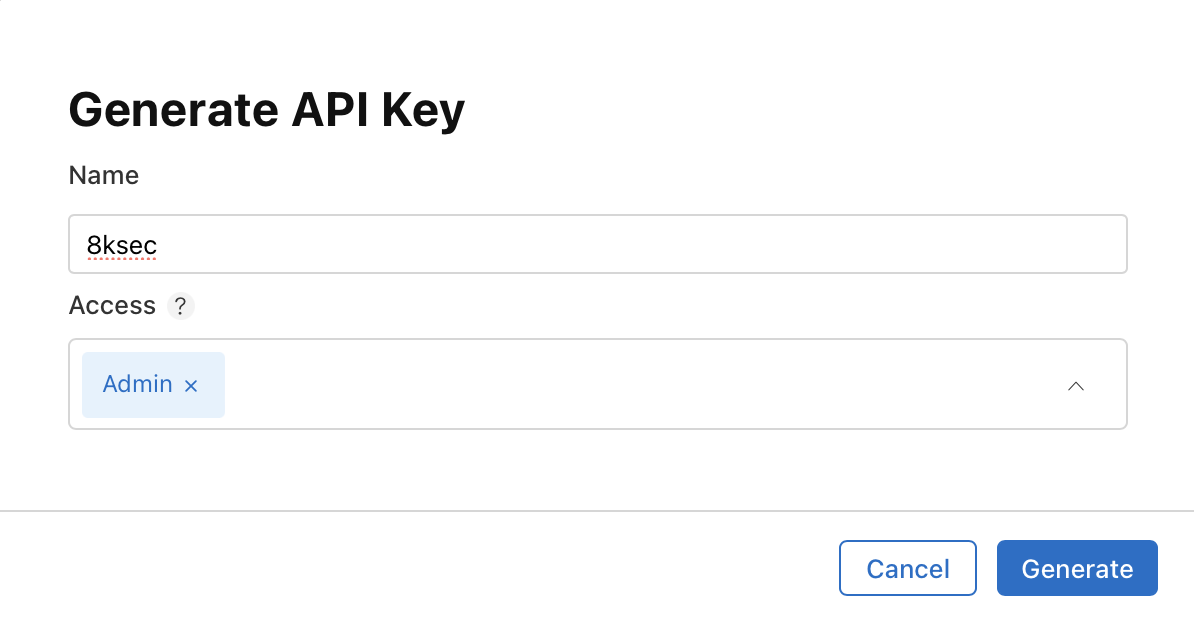
After the key is created we need to download it, by clicking on the Download button.
Path to the file will be provided with the -p flag, Issuer ID with the -i flag and Key ID with -k flag respectively, both of these IDs can be copied from the webpage as can be seen on the image above.
bundle
We can list registered bundle IDs (created with Xcode) using ipsw appstore bundle ls while providing previously acquired information (.p8 file, Issuer ID and Key ID). We could use this command in order to see all the bundle IDs that we have registered.
command: ipsw appstore bundle ls -p PATH_TO_P8_FILE -i ISSUER_ID -k KEY_ID

cert
appstore provides us with the management of signing certificates. To list the certificates we can simply call ipsw appstore cert ls with the .p8 file, Issuer ID and Key ID. We can use this command in the cases where we would want to quickly create new signing certificate or if we want to check them.
command: ipsw appstore cert ls -p PATH_TO_P8_FILE -i ISSUER_ID -k KEY_ID

Now we will see how to create new signing certificate. The first thing we need to do is to create new key using openssl.
command: openssl req -newkey rsa:2048 -keyout 8ksec.key -out 8ksec.csr
After filling required information we will have Certificate Signing Request inside of 8ksec.csr file and private key inside of 8ksec.key. The contents of the 8ksec.csr will be passed to the -c flag of ipsw appstore cert add. We need to clean it up a bit by removing newlines, we can do that with tr -d ’n’.
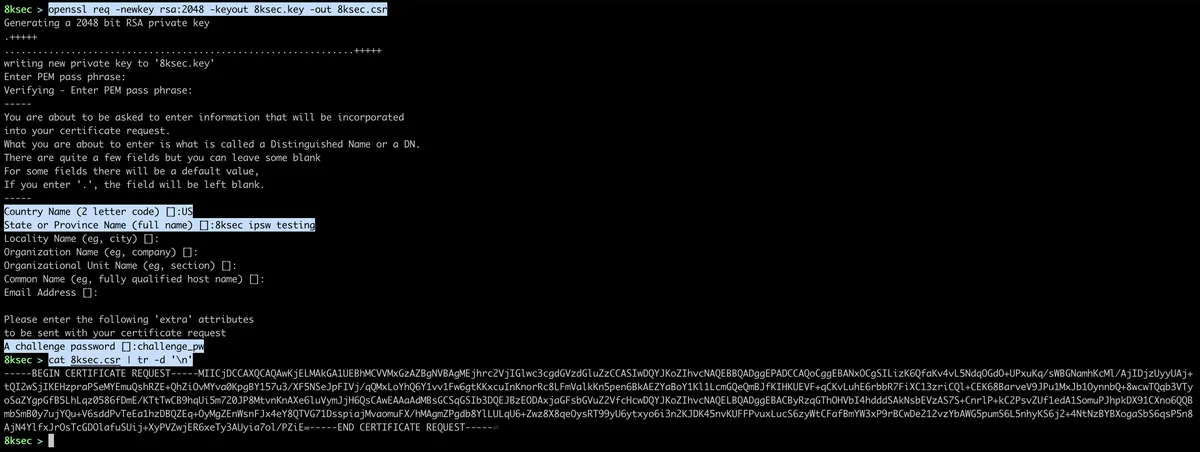
After we have obtained our csr we will call ipsw appstore cert add with the --type DEVELOPMENT.
command: ipsw appstore cert add -c CONTENTS_OF_CSR -t DEVELOPMENT -p PATH_TO_P8_FILE -i ISSUER_ID -k KEY_ID

We can see that we successfully created a new signing certificate which got saved to the file on our system. To confirm that it is indeed created, let’s call ipsw appstore cert ls one more time.

To remove the certificate, we simply pass the --id to ipsw appstore cert rm. In our case the command would look like ipsw appstore cert rm --id Q6FAZ3K5VT -p PATH_TO_P8_FILE -i ISSUER_ID -k KEY_ID.
device
We can also manage devices using appstore subcommand such as listing devices or registering new devices. To add new device, we need to have UDID of the device and specify its name and platform (iOS). UDID of the device can simply be seen using idevice_id from libimobiledevice.
To list the devices command is ipsw appstore device ls -p PATH_TO_P8_FILE -i ISSUER_ID -k KEY_ID

profile
appstore subcommand provides us with profile subcommand which allows us to manage provisioning profiles. We can do things such as listing, creating, renewing and removing provisioning profiles. Provisioning profiles allow for running apps with entitlements or signing certificates outside of the normal configuration of iOS.
To list provisioning profiles: ipsw appstore profile ls -p PATH_TO_P8_FILE -i ISSUER_ID -k KEY_ID

To create a new provisioning profile we need to pass the following:
- the name of the provisioning profile
- certificate ID for the newly created provisioning profile
- finally, device ID for which device will this new provisioning profile be related
command: ipsw appstore profile create NAME -c CERTIFICATES_ID -d DEVICES_ID -p PATH_TO_P8_FILE -i ISSUER_ID -k KEY_ID

If the request was successful, provisioning profile will be written to the NAME.mobileprovision on the disk. To confirm that we have indeed created the profile, let’s issue another profile ls.
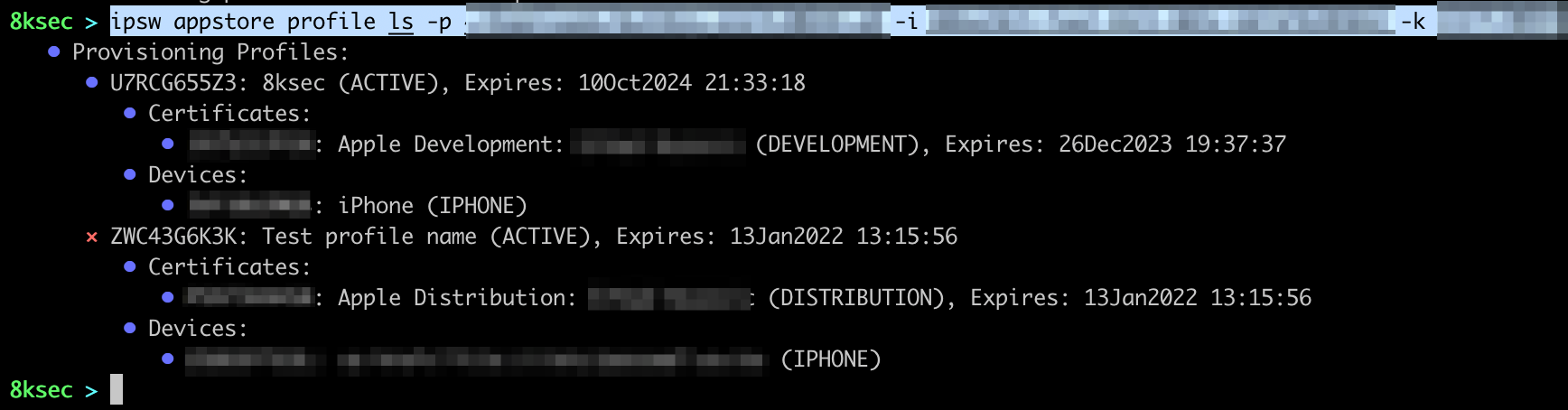
To remove the profile, we simply need to pass the name of the profile to ipsw appstore profile rm with -n flag.
command: ipsw appstore profile rm -n 8ksec -p PATH_TO_P8_FILE -i ISSUER_ID -k KEY_ID
token
Finally, we can generate JWT token to use with the App Store Connect API.
command: ipsw appstore token -p PATH_TO_P8_FILE -i ISSUER_ID -k KEY_ID

device-list
The second main subcommand that ipsw provides is device-list. It allows us to see the list of all iOS devices, its architectures and the CPU inside of them.
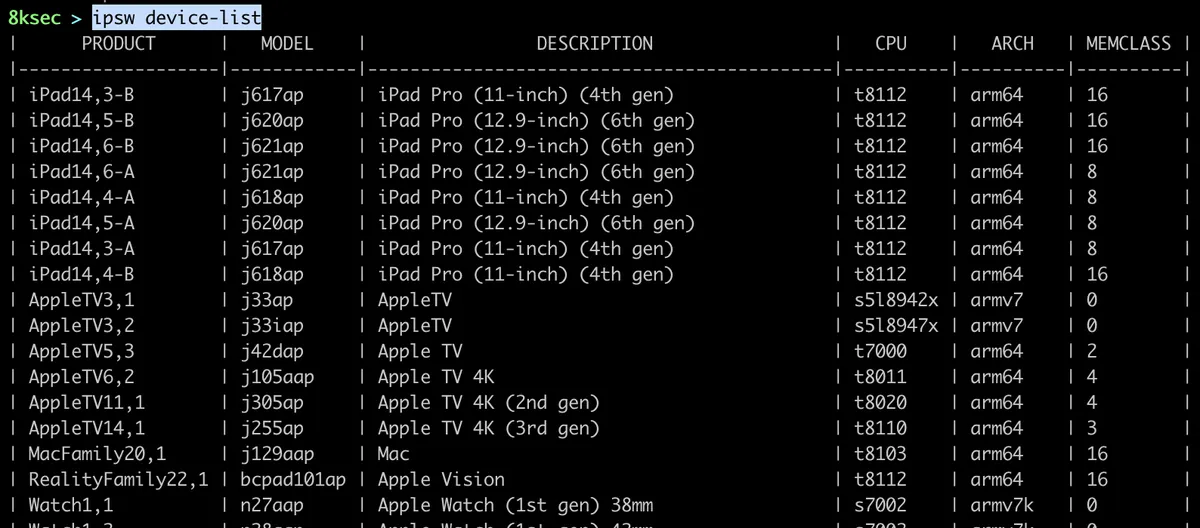
diff
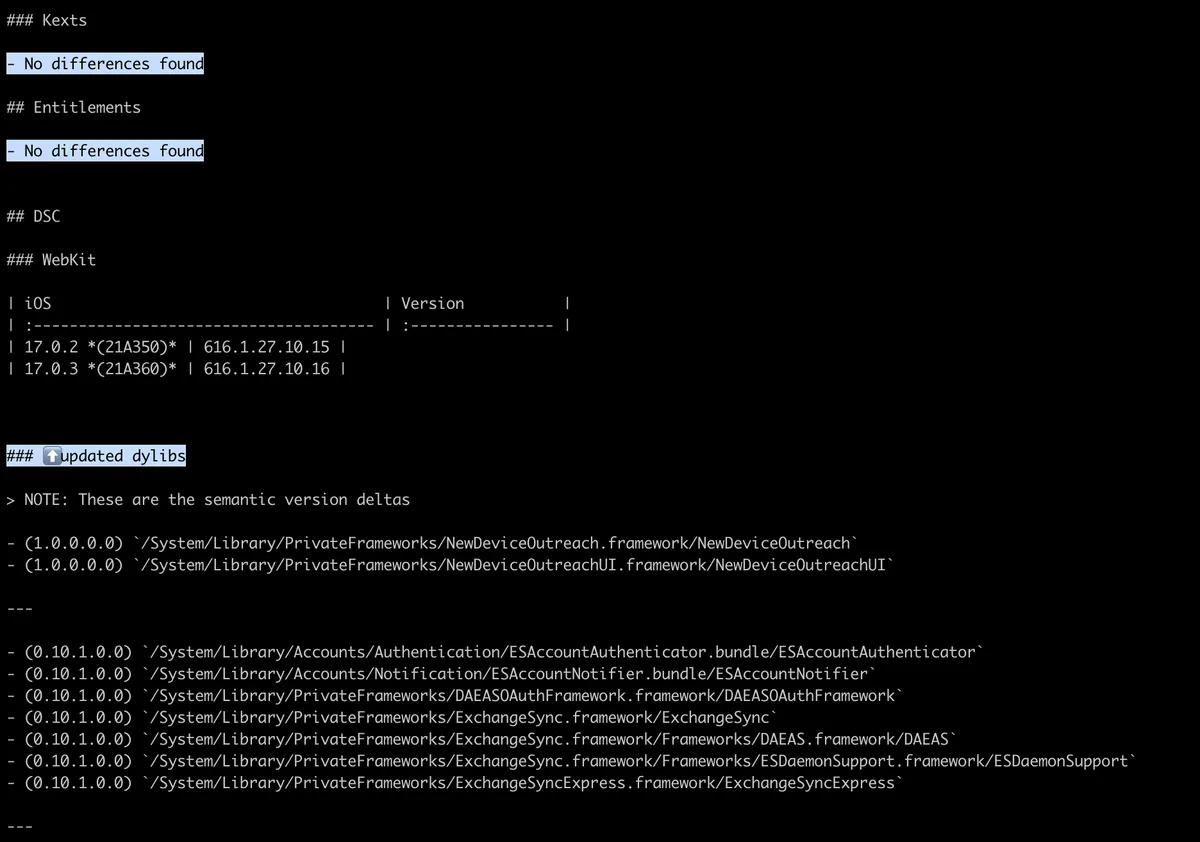
The third main subcommand is related to diffing two ipsw files. ipsw files are basically firmware files and we can diff or find differences between two ipsw files. This can be useful for example if the vulnerability was patched and we don’t know the exact details, this can point us in the right direction.
We will use iPhone 15 17.0.2 and iPhone 15 7.0.3 ipsw files.
command: ipsw diff ~/Downloads/iPhone15,4_17.0.2_21A350_Restore.ipsw ~/Downloads/iPhone15,4_17.0.3_21A360_Restore.ipsw
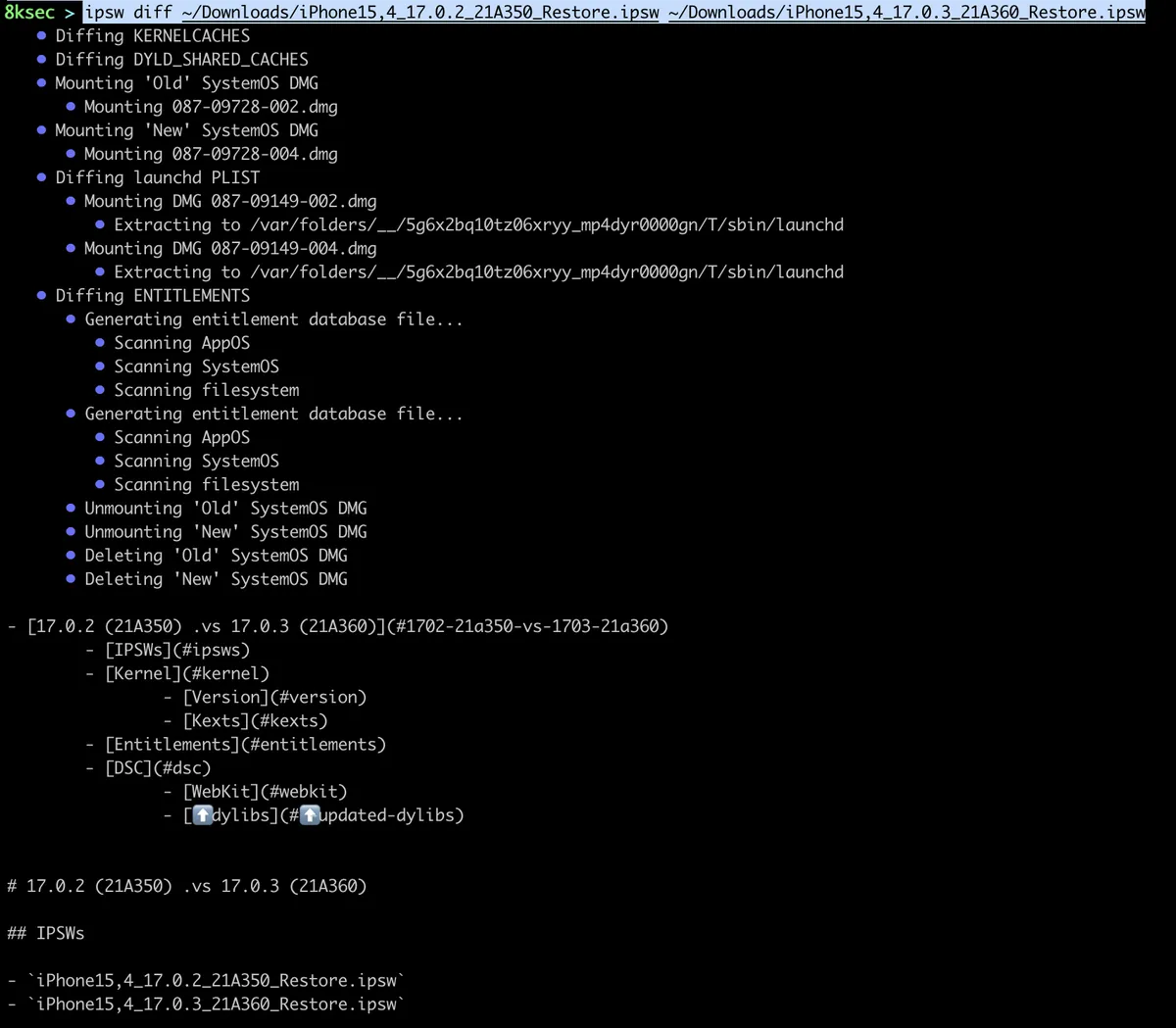
After running the command, we can see that checks a bunch of different categories, such as dyld_shared_cache, entitlements, etc.
A couple of lines below, we can see some actual changes.
download
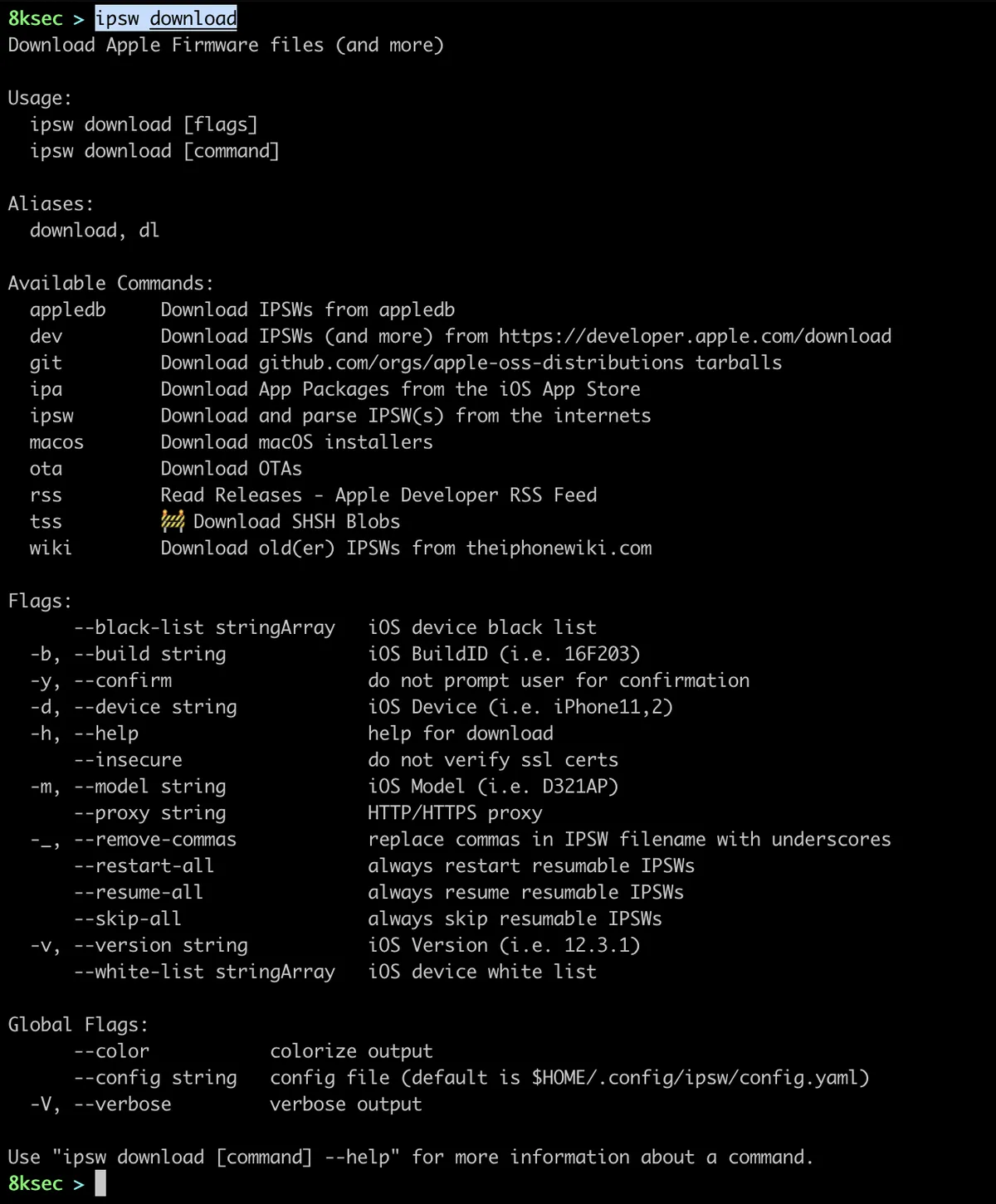
The fourth subcommand allows us to download a whole lot of different stuffs, such as OSs, IPAs, IPSW files, macOS installers and more. We can use this command to go over a bunch of different webpages to download or browse stuff, instead we can do it from the terminal.
appledb
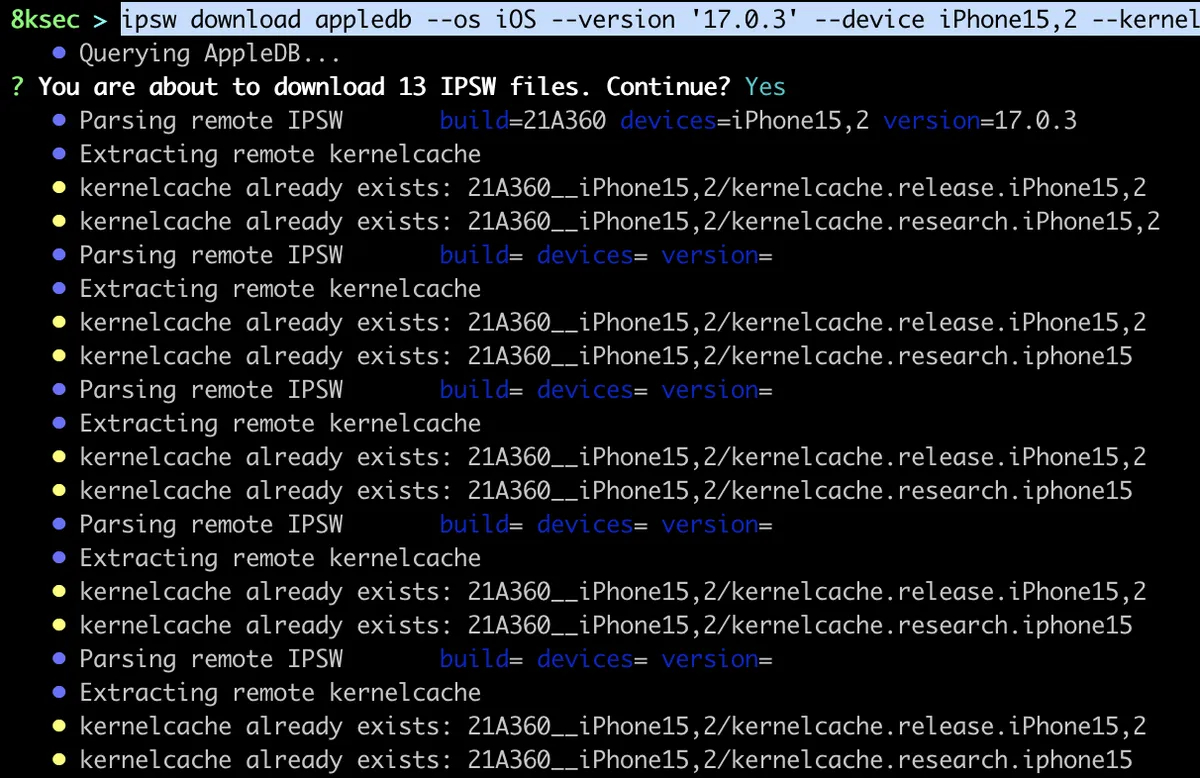
This subcommand allows us to download IPSWs files directly from the appledb.
command: ipsw download appledb --os iOS --version '17.0.3' --device iPhone15,2 --kernel

dev
dev allows you to download IPSWs, OSs, Xcode and more from the https://developer.apple.com/download.
command: ipsw download dev
Typing the command above will give you a list of what you want to download so you can easily select it.

macos
Another useful subcommand for ipsw download is macos which allows you to download macOS installers.
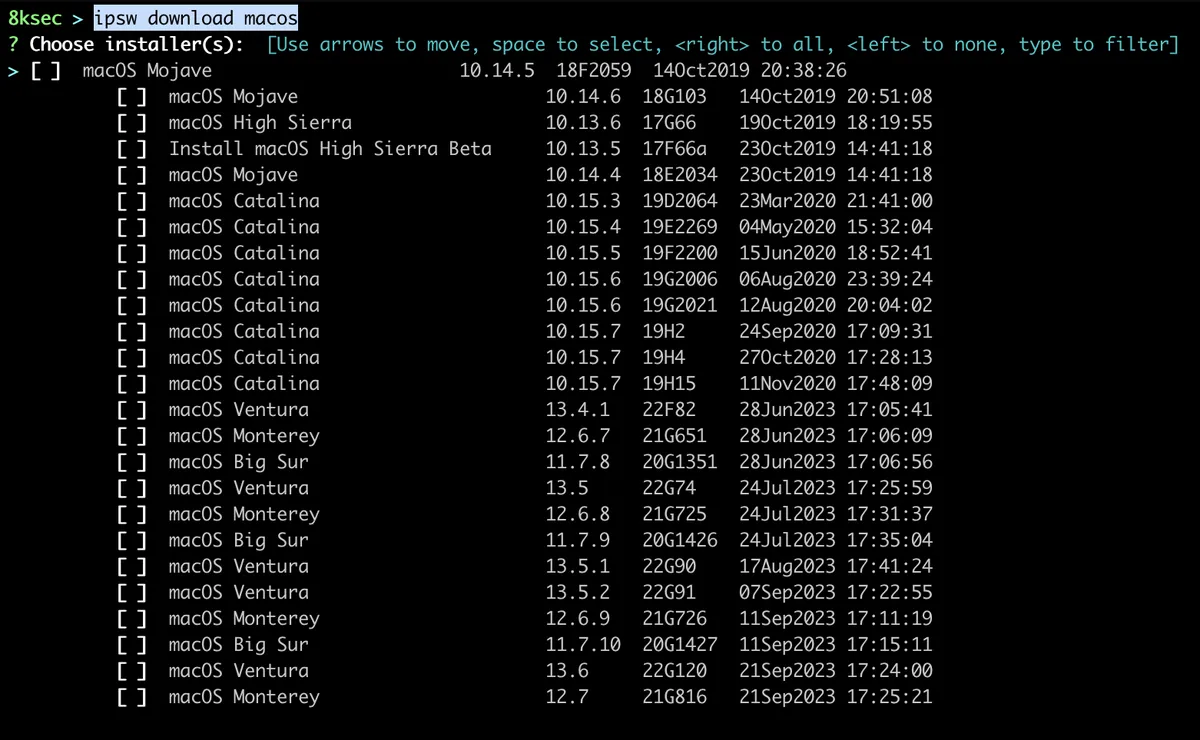
ipsw download offers other options such as git, ipa but to leave a room for the rest of the commands, we will skip those.
dtree
This command allows us to parse DeviceTree. DeviceTree is a representation of hardware used by the bootloaders to provide the kernel with a mapping of a hardware.
To parse DeviceTree, we first need to have one and to do that, we can use ipsw extract to extract DeviceTree from the IPSW file.

Once we have extracted the DeviceTree, we can parse it with ipsw dtree.
command: ipsw dtree PATH_TO_DEVICE_TREE_FILE

dyld
dyld subcommand provides a lot of functionalities related to the dyld_shared_cache. Some of the functionalities are:
- getting info about the dyld_shared_cache
- finding which dylibs import another dylib
- extracting the dyld_shared_cache
- search for string inside of dyld_shared_cache
- and a bunch more
dyld stands for dynamic loader and it’s job is to load the shared libraries into the memory of the process. To speed-up the loading process, these are all combined into the single file called dyld shared cache. We will cover a couple of these functionalities as there is a lot of them.
info
To get all information from the dyld_shared_cache we can just call ipsw dyld info with the path to dyld_shared_cache. We also have a couple of optionals, such as printing only dylibs, dlopen closures.
command: ipsw dyld info PATH_TO_DYLD_SHARED_CACHE
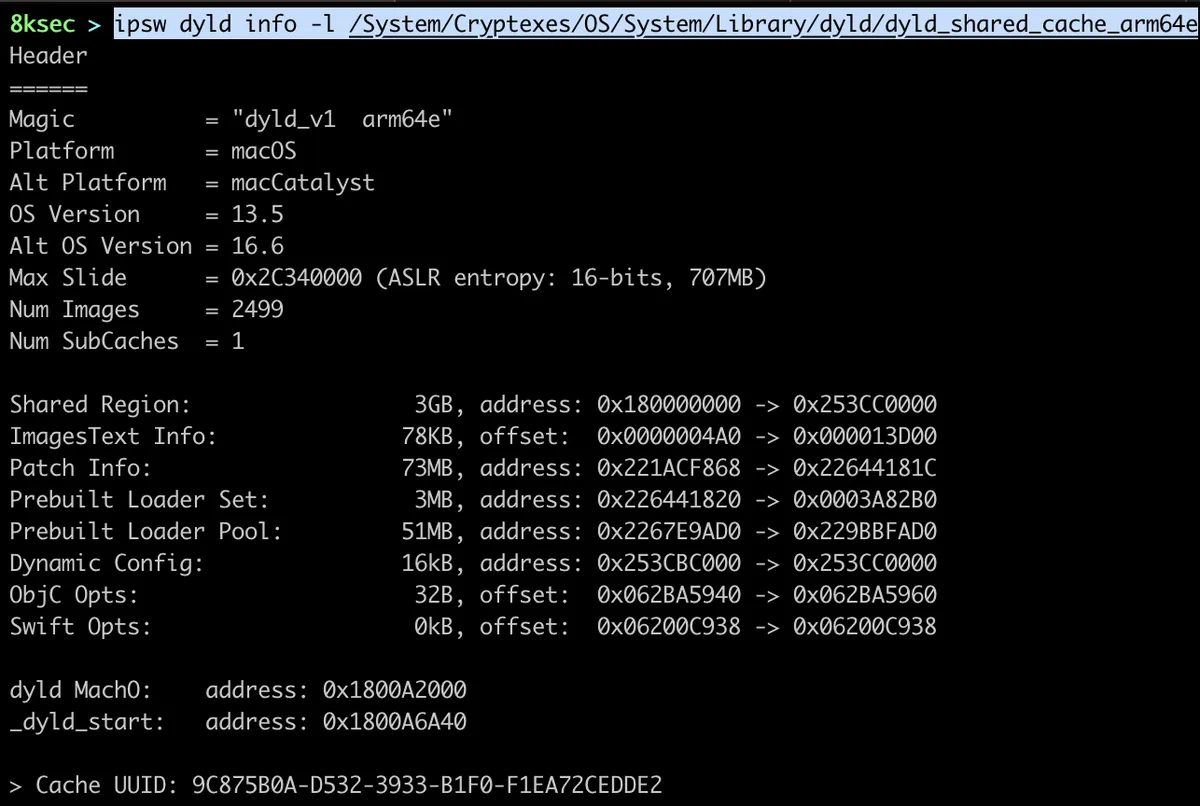
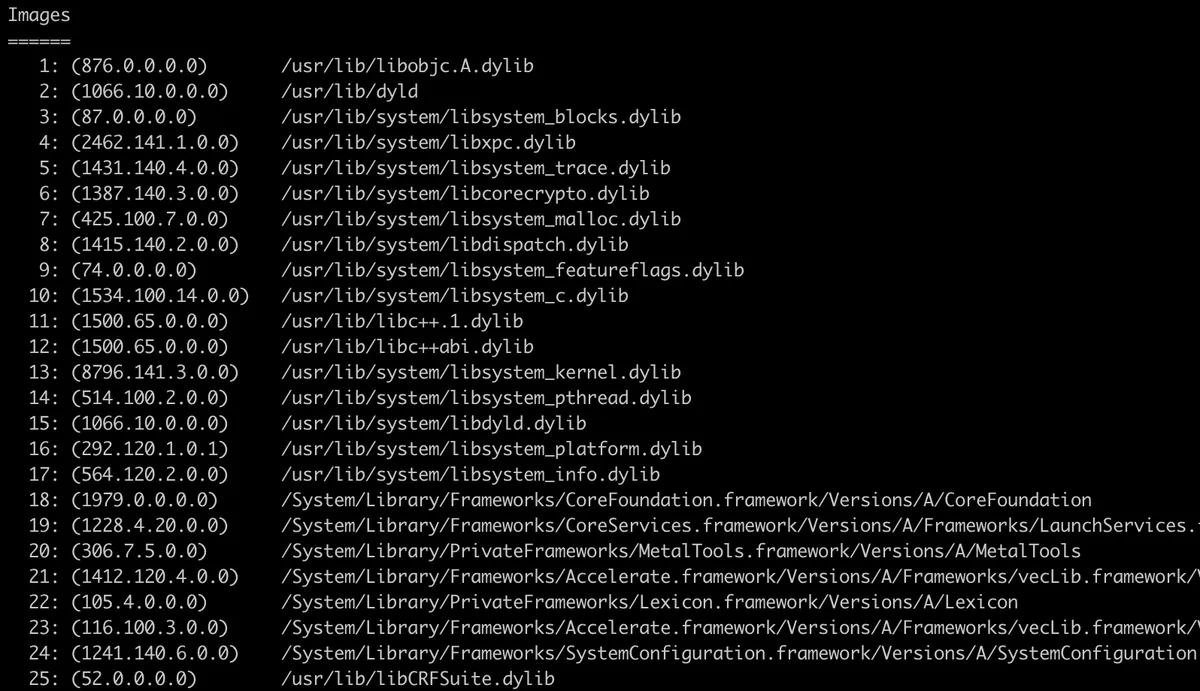
Also, after some general information we can see dylibs inside of dyld_shared_cache as can be seen on the image below.
extract
We can extract specific framework for further analysis from the dyld_shared_cache using ipsw dyld extract command.
command: ipsw dyld extract PATH_TO_DYLD_SHARED_CACHE DYLIB
On the image below, we can see extracting Accelerate.framework.

macho
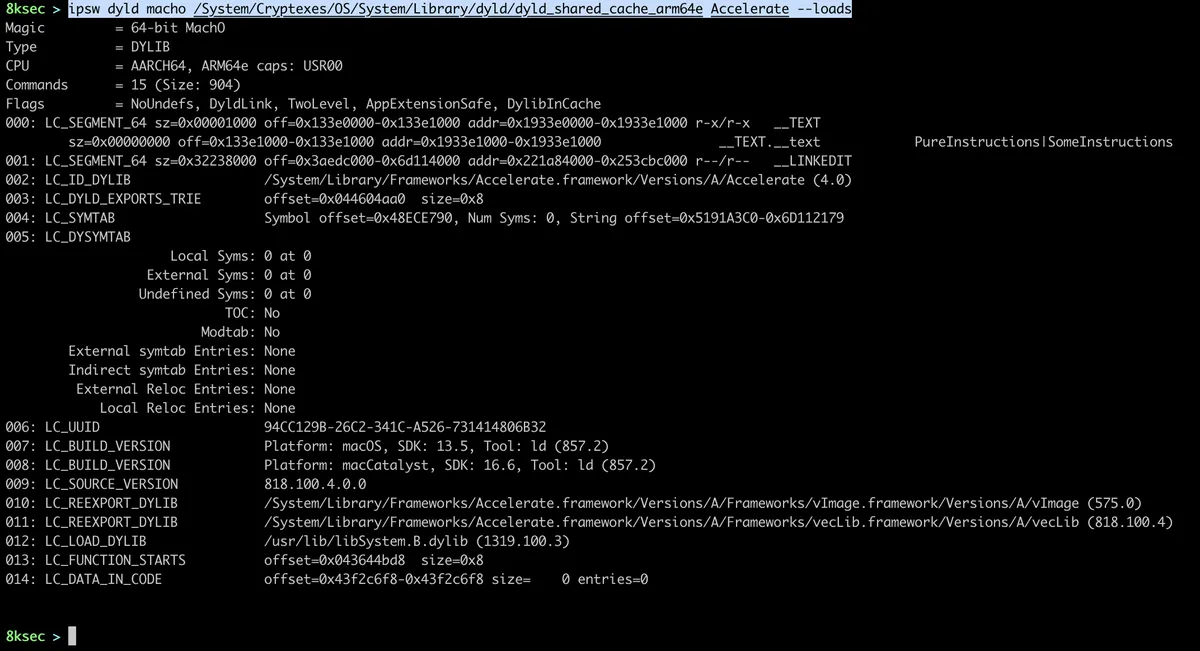
This subcommand for ipsw dyld allows us to parse specific dylib inside of dyld_shared_cache file.
command: ipsw dyld macho PATH_TO_DYLD_SHARED_CACHE DYLIB
For example, to get loads commands from the Accelerate.framework, we can do:
imports
To see which dylibs load specific dylib, we can use ipsw dyld imports command. Lets say we have found a vulnerability inside of specific dylib and we want to check which other frameworks/dylibs import it, we can use this command.
command: ipsw dyld imports PATH_TO_DYLD_SHARED_CACHE DYLIB
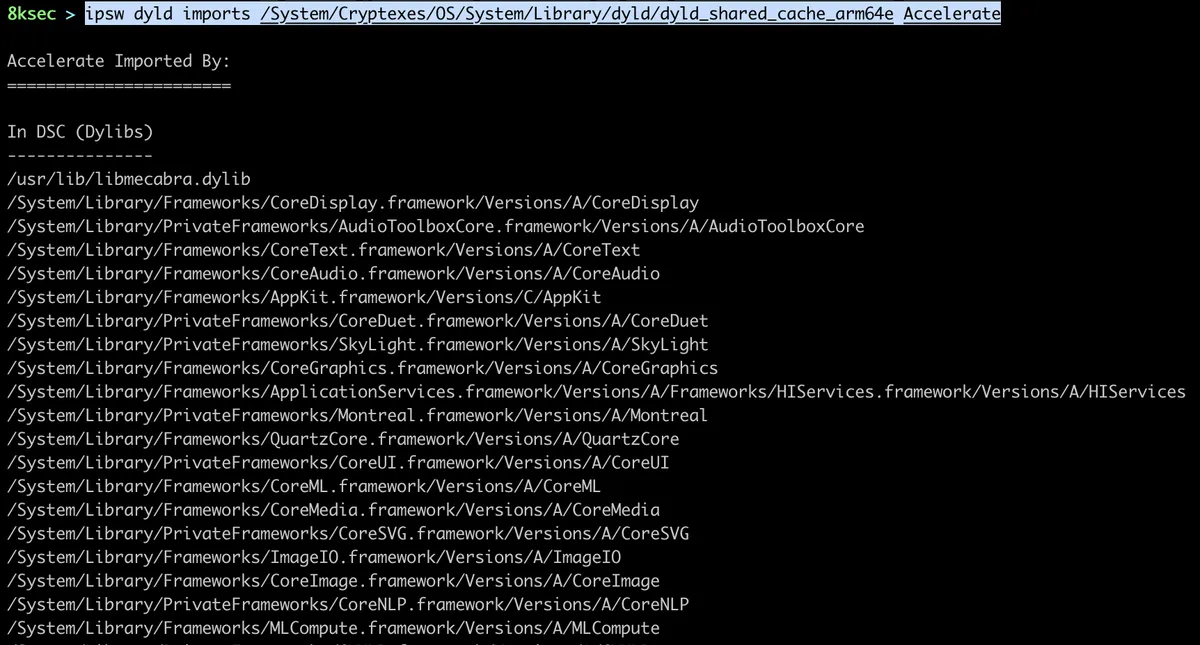
Here we can see which dylibs are loading Accelerate.framework.
objc
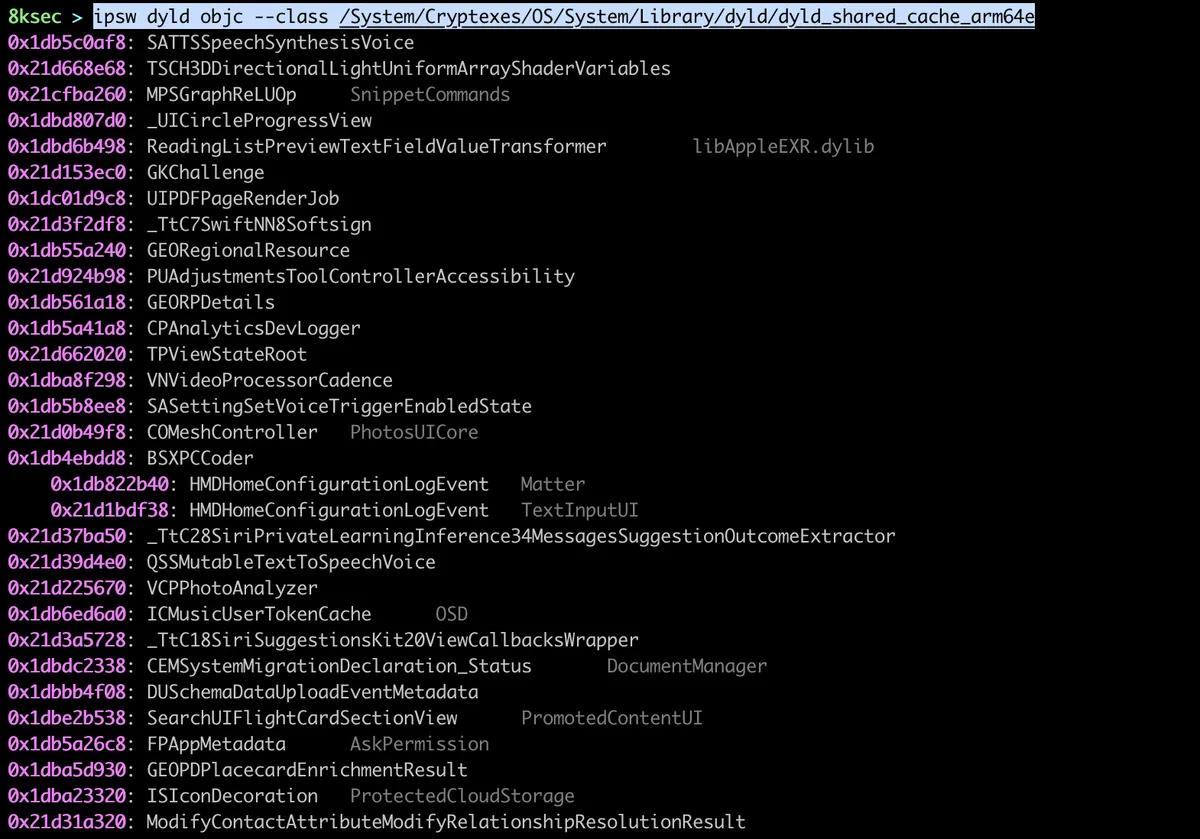
We can gather Objective C information from the dylibs using ipsw dyld objc. We can use it to print classes, protocols, selectors or imp-caches for dyld_shared_cache. This command is useful if we want to see some classes/functionalities inside of PrivateFrameworks.
To dump all the classes, we can use ipsw dyld objc —class PATH_TO_DYLD_SHARED_CACHE
split
We can split the dyld_shared_cache using ipsw dyld split which allows us to see everything inside of dyld_shared_cache. We will go over splitting dyld_shared_cache on macOS Ventura.
On macOS Ventura, dyld_shared_cache is stored at the location of /System/Cryptexes/OS/System/Library/dyld/.
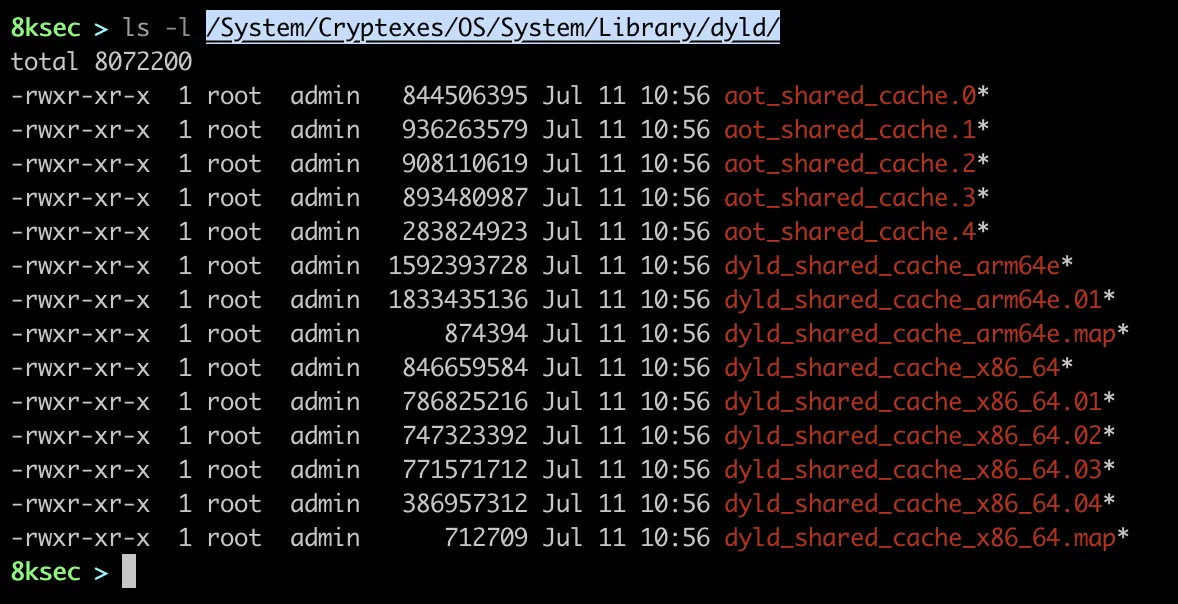
To do that, we just need to pass the path to the dyld_shared_cache file and optional output path. As we can recall previously, our dyld_shared_cache files are stored at the /System/Cryptexes/OS/System/Library/dyld/ and we will use dyld_shared_cache_arm64e one.
command: ipsw dyld split /System/Cryptexes/Os/System/Library/dyld/dyld_shared_cache_arm64e /tmp/8ksec.
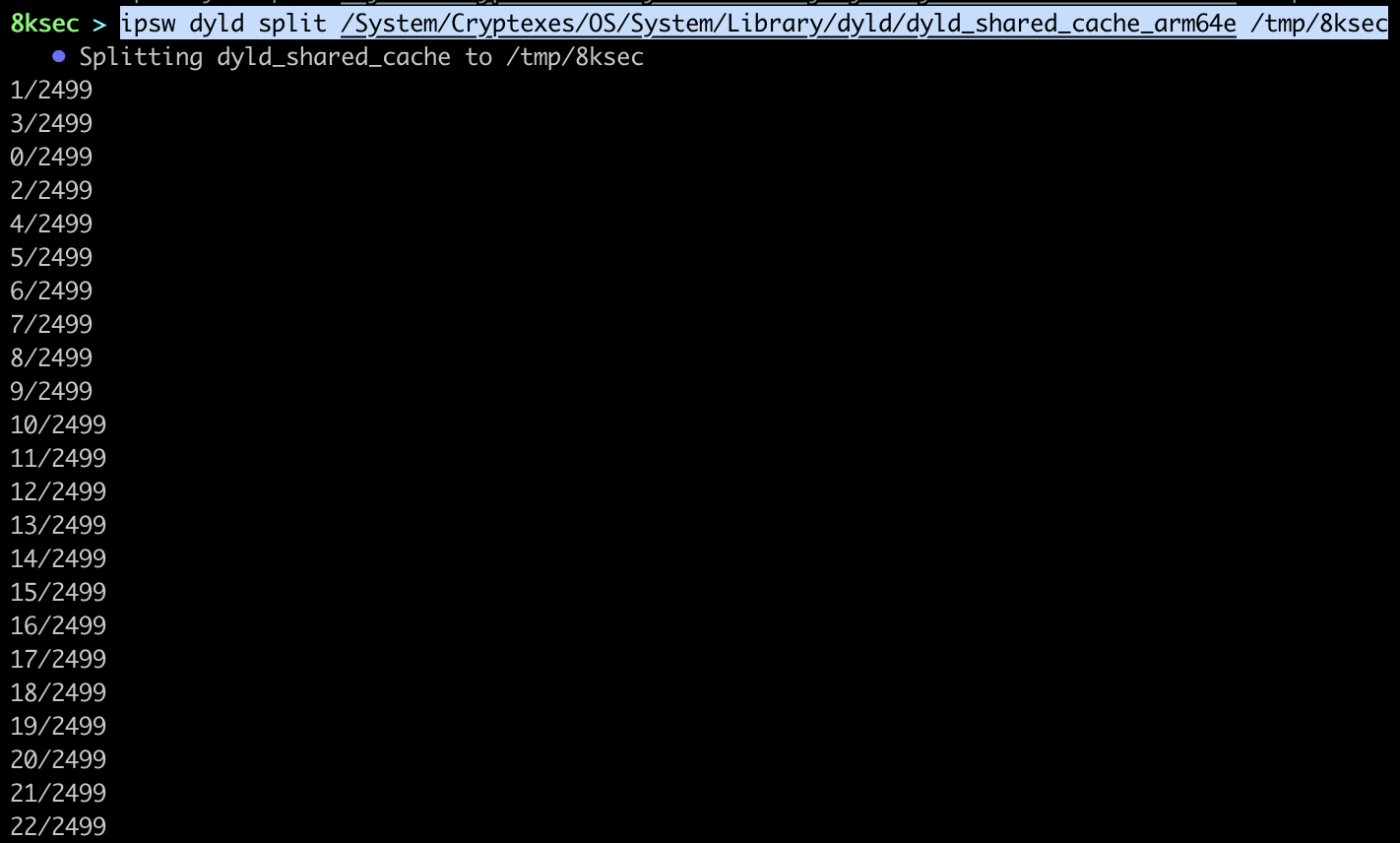
A couple of seconds later, we can examine the output directory to see what is inside.
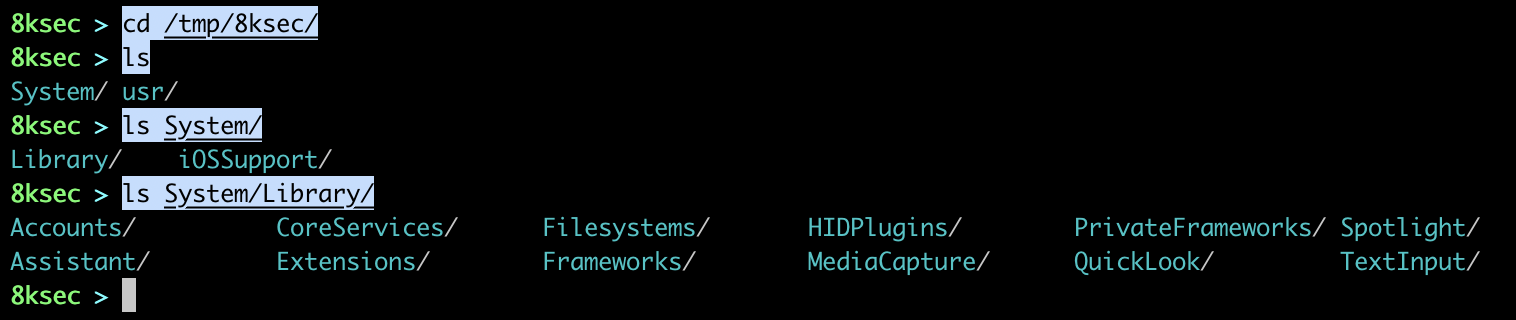
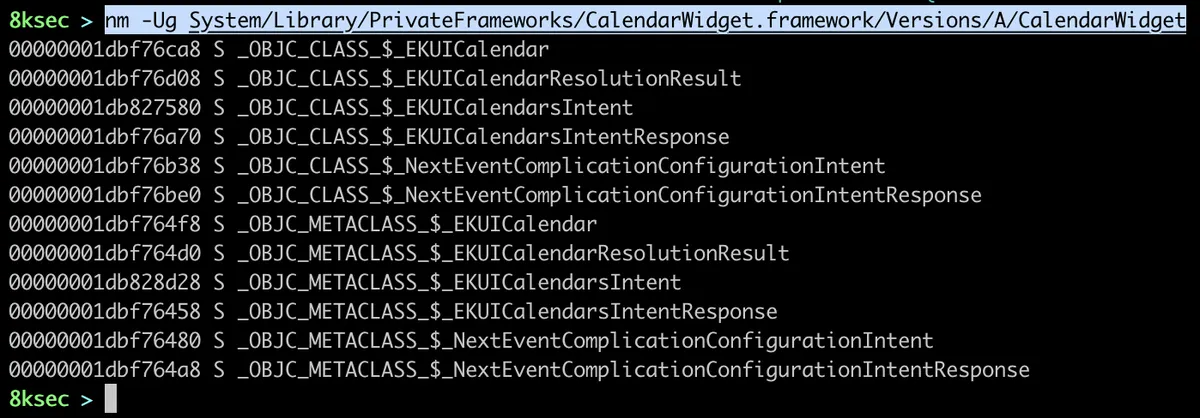
We can see a lot of interesting directories such as PrivateFrameworks and Frameworks. We can now, for example, see the exported symbols from one of this frameworks, let’s say CalendarWidget.framework using nm -Ug followed by the path to the CalendarWidget shared library.
str
ipsw dyld str allows us to search for specific string patterns inside of dyld_shared_cache files. This comes in handy when we want to check for example where is the specific string used/referenced.
command: ipsw str PATH_TO_DYLD_SHARED_CACHE -p “REGEX PATTERN”
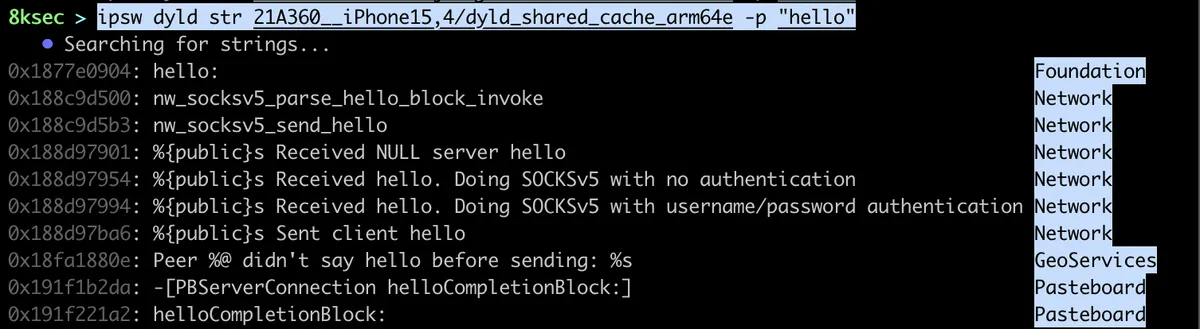
As can be seen on the image above, there are quite a lot of cases where the world string is present. We can also see the name of the framework where the pattern was found.
ent
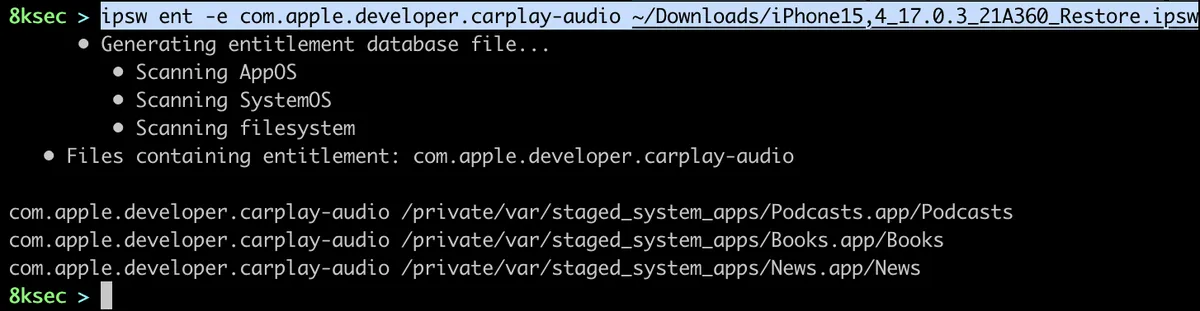
ipsw ent allows us to search for specific entitlement inside of IPSW, make a diff of entitlements inside of two different IPSW files as well as dumping entitlements for specific MachO file. This one can be useful if we want to know every binary that contains specific entitlement, or we want to see changes between two different IPSW files.
search
To do search for specific entitlement, let’s say for com.apple.developer.carplay-audio, the command would look like this:
command: ipsw ent -e com.apple.developer.carplay-audio PATH_TO_IPSW_FILE
diff
Diff allows us to see difference in entitlements between two IPSW files.
command: ipsw ent --diff PATH_TO_FIRST_IPSW PATH_TO_SECOND_IPSW

info
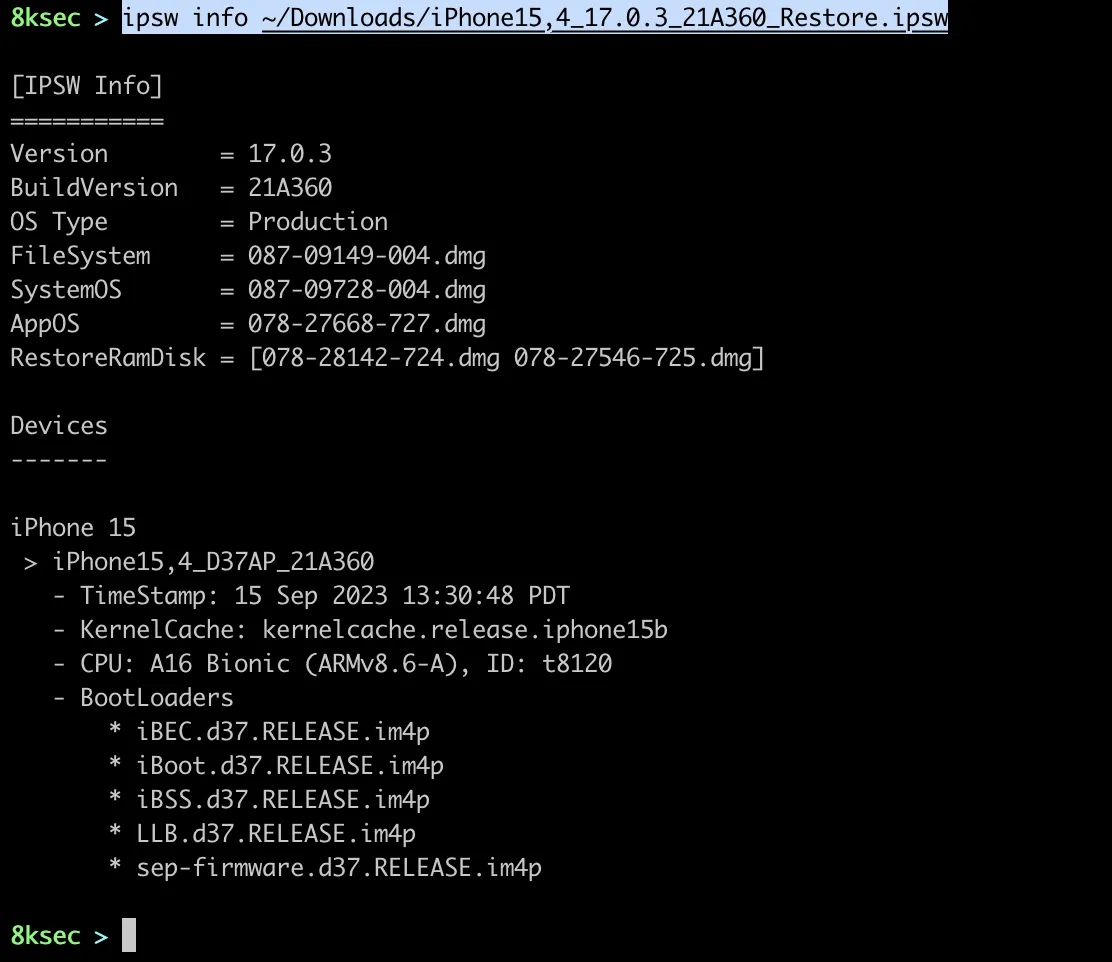
ipsw info command allows us to see information regarding IPSW or OTA file. We could use this command if we want to see the chip or iOS version for the specific IPSW or OTA file. We can do the check for the local files, or we can pass the URL with the -r flag to to analysis on the remote file.
command for local file: ipsw info PATH_TO_IPSW_OTA_FILE command for remote: ipsw info -r URL
mdevs
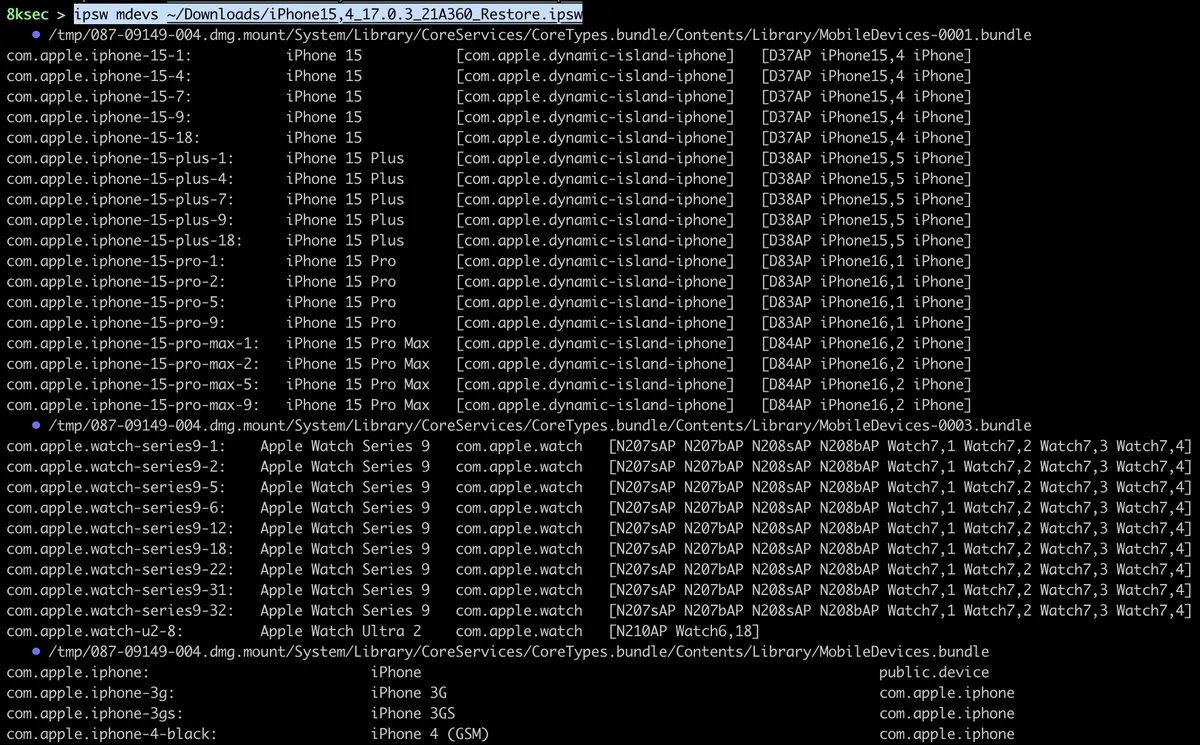
ipsw mdevs allows us to see all mobile devices inside of specific IPSW file.
command: ipsw mdevs PATH_TO_IPSW
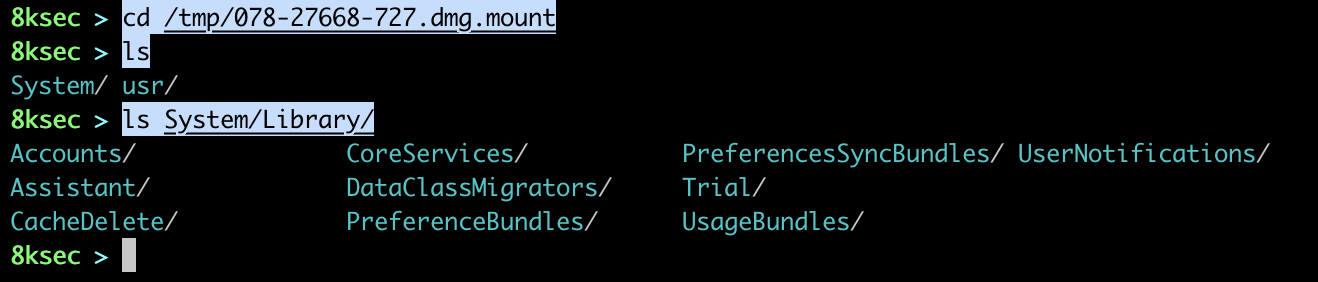
mount
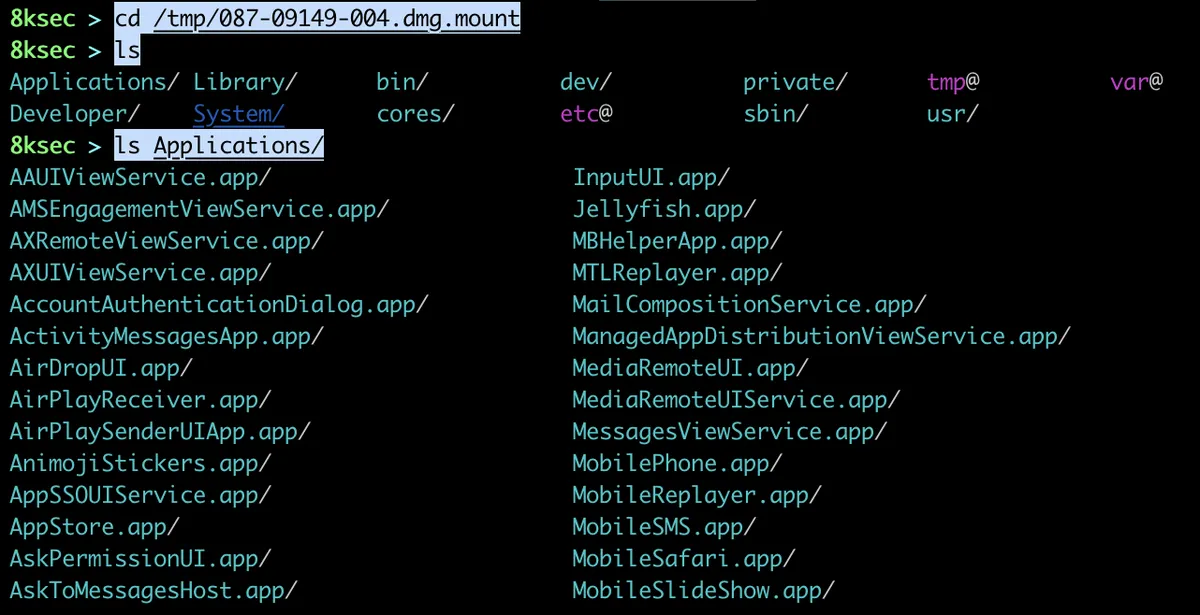
ipsw mount command allows us to mount the specific part of IPSW file. Those parts are fs (filesystem), sys (system) or app (library). We may want to use this command if we would like to see what is exactly inside of IPSW file and to do some further analysis/research on the specific part of it, e.g. specific dylib.
command: ipsw mount [fs|sys|app] PATH_TO_IPSW_FILE
On the next two images we can see mounting fs (filesystem) and what is inside of it.

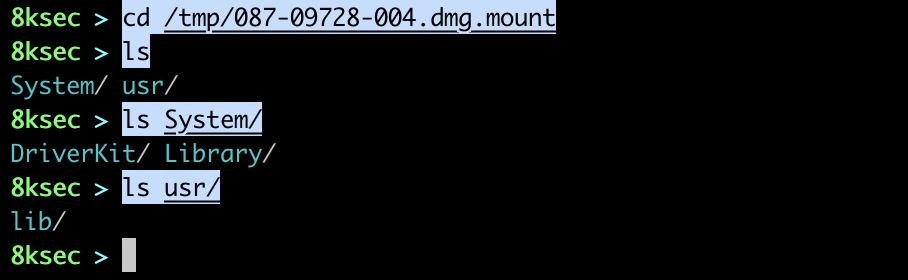
Now, we will mount the sys (system) and we will check its content.

Finally, we will mount app.

plist
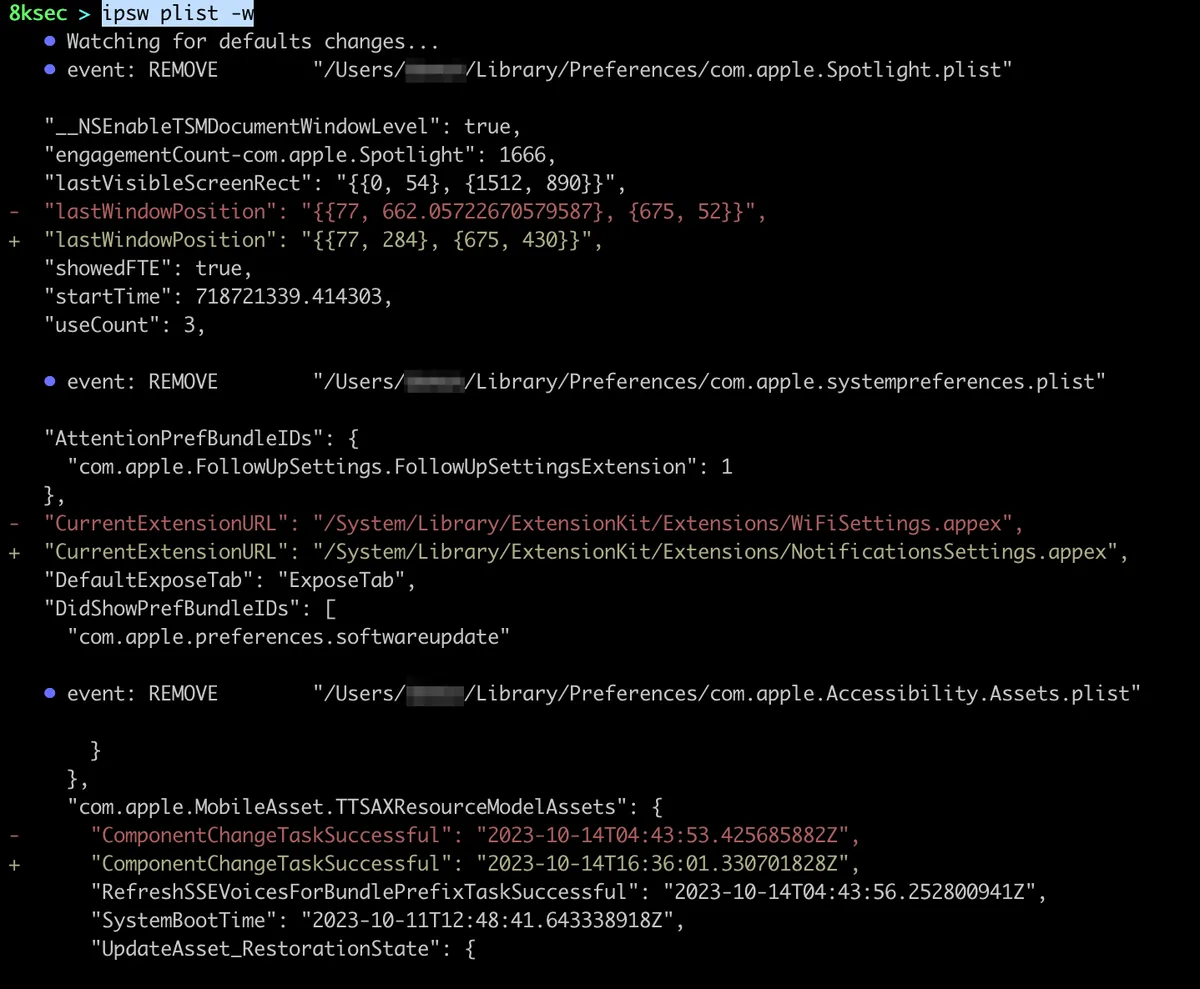
ipsw plist command allows us to dump the .plist file as json or for example to watch for changes in plist files inside of specific directory. Let’s say that we are analyzing the application and we want to know what and when triggers writing specific option inside of plist file, we could utilise this command.
file
We can pass in the path to the plist file and it would get parsed as json.
command: ipsw plist PATH_TO_PLIST_FILE
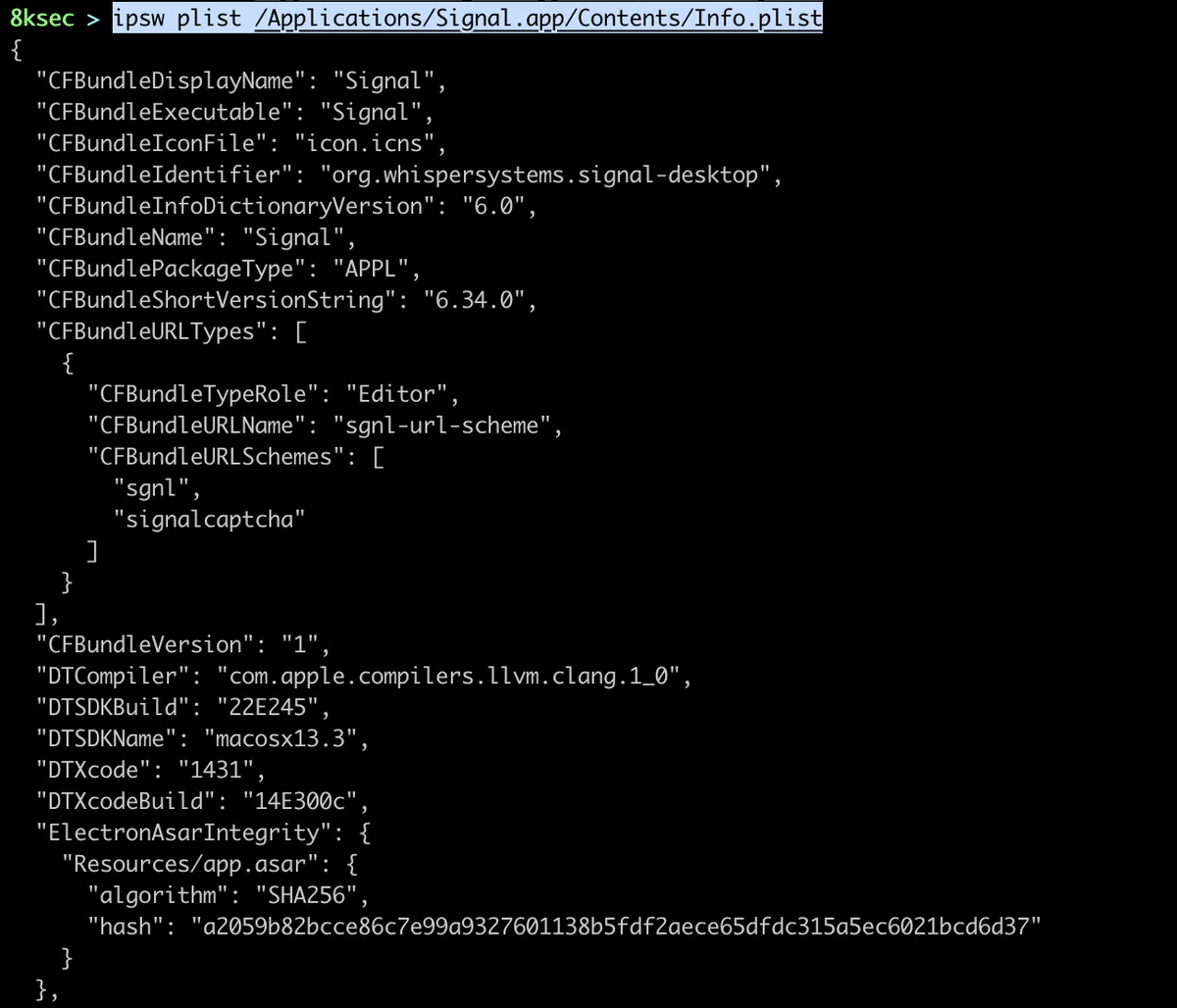
We can also pass the output of this to jq to get let’s say bundle identifier.

watch
We can also use ipsw plist to watch specific directory for changes inside of plist files. This comes in handy when we want to track what changes inside of plist file while we are working with the application.
command: ipsw plist -w PATH_TO_DIRECTORY
update
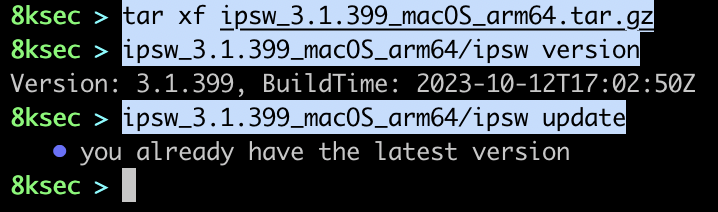
ipsw provides us with the convenient way to update it by running the ipsw update which then allows us to download the new version for out specific OS and architecture.
command: ipsw update
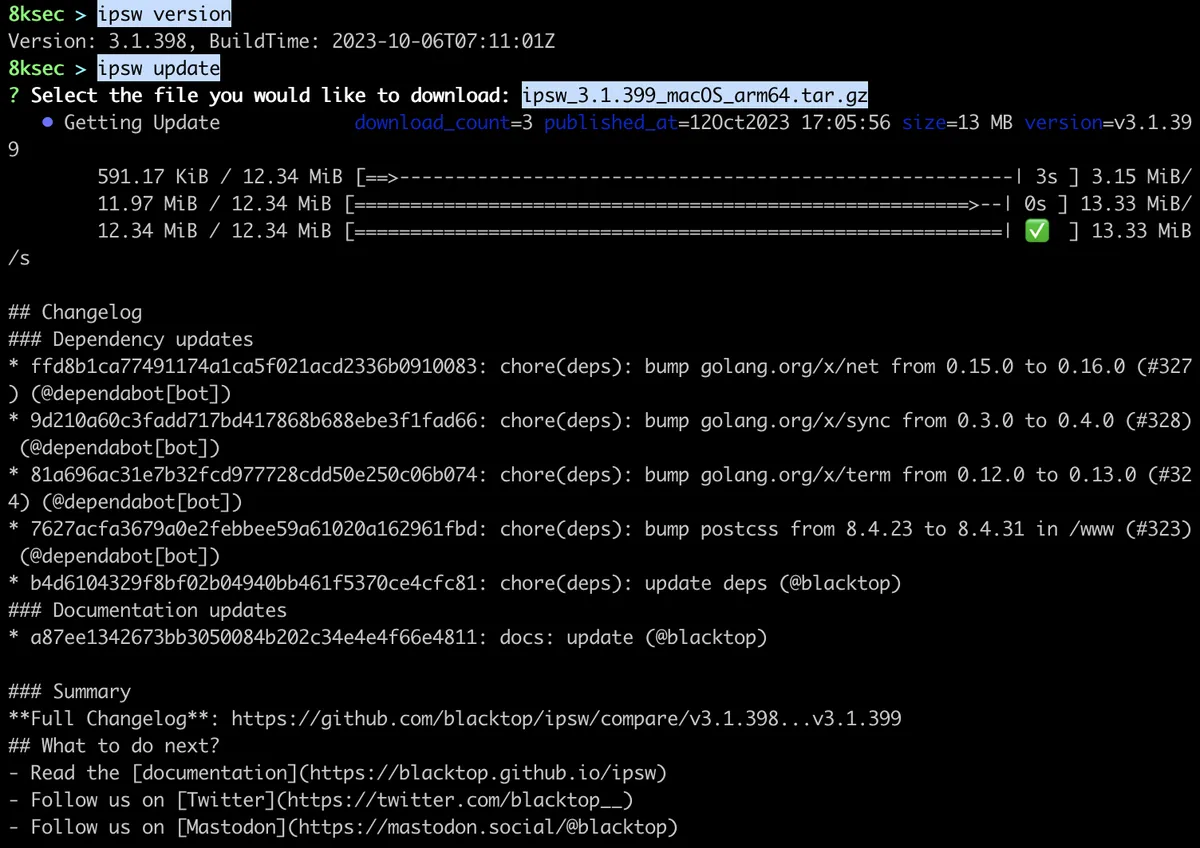
After the download has finished, we can extract the archive, check our version and to see if we are indeed running the latest version by running ipsw update inside of downloaded package.
watch
ipsw watch is the command which is not strictly related to iOS or macOS but it is related to watching specific GitHub repository for changes. We can watch for the changed file or perhaps pattern inside of commit messages and get notified about the changes over the Discord.
In the next part, we will look at some additional uses of ipsw for *OS security research.
References:
- https://github.com/blacktop/ipsw
- https://blacktop.github.io/ipsw/docs/introduction
- https://www.theiphonewiki.com/wiki/IPSW_File_Format
- https://www.theiphonewiki.com/wiki/OTA_Updates
- https://www.theiphonewiki.com/wiki/DeviceTree
- https://www.theiphonewiki.com/wiki/Dyld_shared_cache
- https://iphonedev.wiki/Entitlements
- https://iphonedev.wiki/Preferences_specifier_plist
- https://appstoreconnect.apple.com/access/api
- https://appledb.dev/
Recommended Training
Offensive iOS Internals
Get the full picture of iOS internals — sandboxing, IPC, code signing and memory management.
Offensive iOS Internals
Same syllabus, self-paced. Lifetime access to videos, labs and updates on 8kSec Academy.
Enroll on AcademyGet in Touch
Want to learn these techniques hands-on, or need help assessing your own mobile or AI stack? We run live and on-demand trainings, offer mobile-security certifications, and take on penetration-testing engagements. Pick the door that fits.
We respond within one business day. Visit our events page to see where we'll be next.