Android SELinux Internals Part II - SELinux Domains, Denials, and Bypass with Root Tools
All parts in this series
- 1 Android SELinux Internals Part I | 8kSec Blogs
- 2 Android SELinux Internals Part II - SELinux Domains, Denials, and Bypass with Root Tools
- 3 Android SELinux Internals Part III - Kernel-Level SELinux Bypass and Real-World Exploit Chains
- 4 Android SELinux Internals Part IV - Policy Analysis, Kernel Mitigations, and Android 16 Changes
← Part I: Android SELinux Internals
Introduction
I know, I know, it’s been a while since Part I dropped. A lot of you have been asking when Part II was coming, and honestly, this one took way longer than I expected. Turns out, once you start pulling at the SELinux thread on Android and going beyond the basics into real exploit chains and kernel internals, there’s a lot of ground to cover. I didn’t want to rush it and put out something half-baked, so I took my time, dug into the actual exploit code, tested everything on devices up to Android 16, and made sure what’s in here is stuff you can actually use. Hope the wait was worth it.
In Part I of this series, we covered the fundamentals of SELinux on Android. We looked at how security contexts work, how to read and inspect policies, and how to use tools like sepolicy-inject to modify policy rules at runtime. We ended with a demonstration of injecting a single allow rule to let the shell domain read from rootfs.
That was a warm-up. In this post, we go deeper into the practical side of SELinux — how Android decides which domain an app runs in, how to interpret the denials you’ll hit during testing, and how to manipulate SELinux policy using modern root solutions.
By the end of this post, you will understand:
- How Android maps applications to SELinux domains at install and launch time, including the role of Zygote and installd
- How to parse and decode AVC denial messages to understand exactly what SELinux is blocking
- How to change the SELinux context of files and processes on a rooted device
- How Magisk, KernelSU, and APatch each approach SELinux policy modification differently
- A step-by-step walkthrough for overcoming SELinux when testing exploit PoCs
- How to build a reusable Magisk module for persistent SELinux testing configurations
In the coming weeks we will be posting Part III, where we’ll go further into covering multiple kernel-level SELinux bypass techniques, real-world exploit chains (CVE-2019-2215, Dirty Pipe, Samsung in-the-wild 0-days, CVE-2024-44068, CVE-2024-53104), and what changed in Android 16.
Let’s get into it.
How Android Assigns SELinux Domains to Apps
Before we can bypass anything, we need to understand the mechanism that assigns a security context to an app process in the first place. This is one of the most misunderstood parts of Android’s SELinux implementation, and getting it wrong leads to wasted time when you’re trying to figure out why a particular process can or can’t do something.
The seapp_contexts File
When an application is launched, Android doesn’t just pick a domain at random. The mapping from app attributes to SELinux domain is defined in a file called seapp_contexts, located in the AOSP sepolicy source tree and shipped on every Android device.
Pull it from a device to see what’s actually running:
$ adb shell cat /system/etc/selinux/plat_seapp_contexts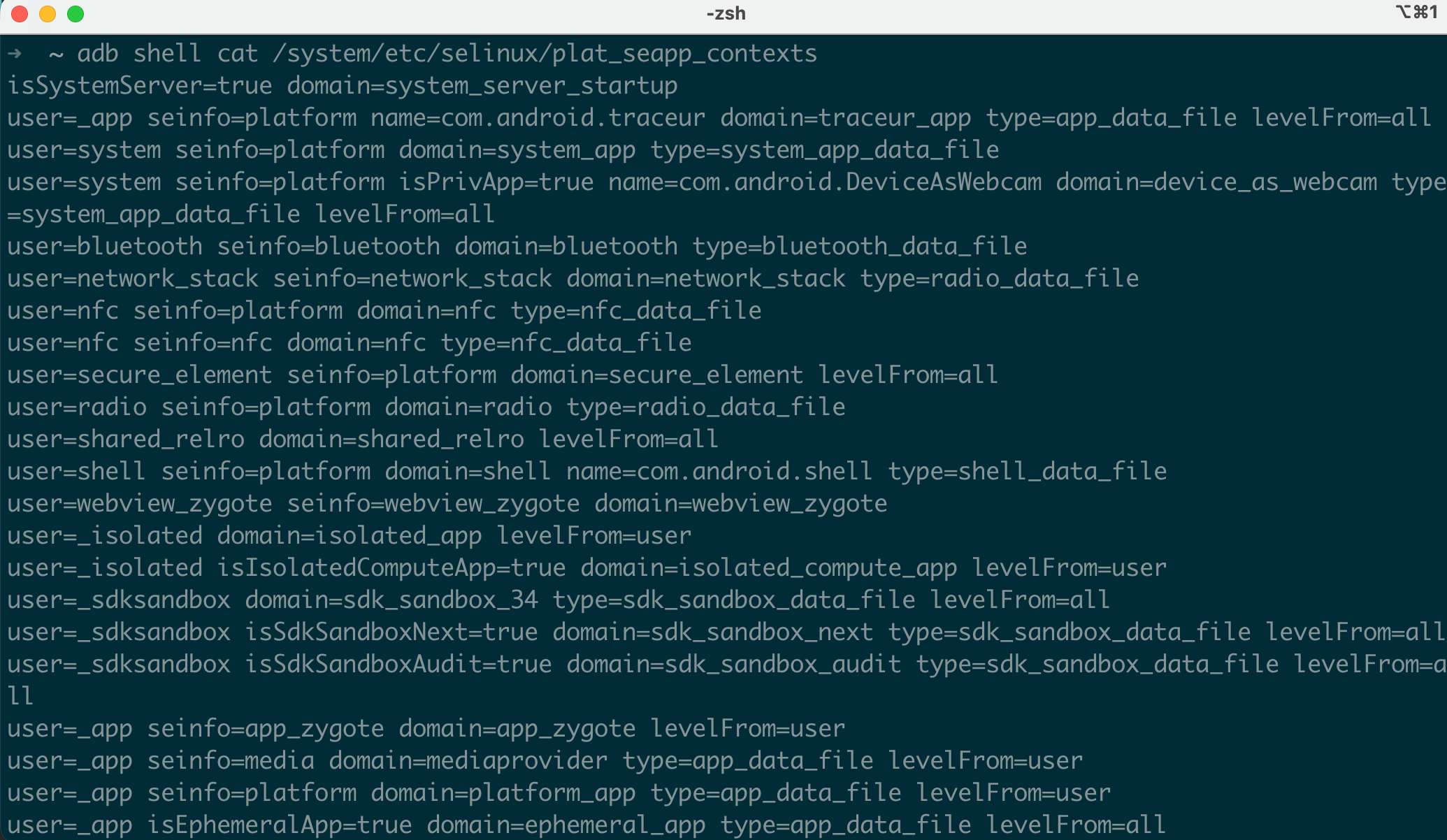
Each line in this file is a rule with input selectors on the left and output assignments on the right. The input selectors match against properties of the app being launched, and the output determines which SELinux domain and file type the app gets.
Here’s a trimmed version of the actual AOSP seapp_contexts from Android 16:
# Input selectors:
#   isSystemServer (boolean)
#   isEphemeralApp  (boolean)
#   user            (string)
#   seinfo          (string)
#   name            (string)
#   isPrivApp       (boolean)
#   minTargetSdkVersion (integer)
#   isSdkSandbox    (boolean)        # Added in Android 13+
#   isIsolatedComputeApp (boolean)   # Added in Android 14+
#
# Output:
#   domain    (string)
#   type      (string)
#   levelFrom (string: user, app, or all)

isSystemServer=true domain=system_server_startup

user=system seinfo=platform domain=system_app type=system_app_data_file
user=bluetooth seinfo=platform domain=bluetooth type=bluetooth_data_file
user=nfc seinfo=platform domain=nfc type=nfc_data_file
user=radio seinfo=platform domain=radio type=radio_data_file

user=_app seinfo=platform isPrivApp=true name=com.android.permissioncontroller domain=permissioncontroller_app type=privapp_data_file levelFrom=all
user=_app isPrivApp=true domain=priv_app type=privapp_data_file levelFrom=all
user=_app seinfo=media domain=mediaprovider type=app_data_file levelFrom=user
user=_app isSdkSandbox=true domain=sdk_sandbox type=sdk_sandbox_data_file levelFrom=all
user=_app isEphemeralApp=true domain=ephemeral_app type=app_data_file levelFrom=all
user=_app domain=untrusted_app type=app_data_file levelFrom=all
The ordering matters! Android evaluates these rules top to bottom and uses the first match. This means more specific rules (with name= or isPrivApp=true) must come before the generic catch-all user=_app domain=untrusted_app at the bottom.
Let’s walk through what happens for a few different app types:
| App Type | Matching Rule | SELinux Domain | Why |
|---|---|---|---|
| Google Chrome (user-installed) | user=_app domain=untrusted_app | untrusted_app | No special flags, hits catch-all |
| Settings app | user=system seinfo=platform | system_app | Runs as system user with platform cert |
| Permission Controller | name=com.android.permissioncontroller | permissioncontroller_app | Matched by package name specifically |
| Instant App (Play Store) | isEphemeralApp=true | ephemeral_app | Flagged as ephemeral by package manager |
| SDK Runtime sandbox | isSdkSandbox=true | sdk_sandbox | Android 13+ SDK sandbox isolation |
Where Does seinfo Come From?
You’ll notice the seinfo selector in several rules. This value is assigned based on the signing certificate of the APK, and the mapping lives in /system/etc/selinux/plat_mac_permissions.xml:
<?xml version="1.0" encoding="utf-8"?>
<policy>
    <!-- Platform key -->
    <signer signature="308204a8...">
      <seinfo value="platform" />
    </signer>

    <!-- Media key -->
    <signer signature="308203e2...">
      <seinfo value="media" />
    </signer>

    <!-- Shared key -->
    <signer signature="308204e4...">
      <seinfo value="shared" />
    </signer>

    <!-- All other signatures -->
    <default>
      <seinfo value="default" />
    </default>
</policy>
The signature values are the hex-encoded X.509 certificates. Android ships with four signing keys which are platform, shared, media, and testkey, and each maps to a different seinfo tag. Any APK not signed with one of these keys gets seinfo=default.
So the complete chain works like this:
- An APK is installed. The PackageManagerService extracts its signing certificate.
- At install time,
mac_permissions.xmlis consulted to map that certificate to aseinfotag (e.g.,platform,media, ordefault). This tag is stored in the package’s metadata. - When the app is launched, Zygote reads the
seinfotag from the package metadata, along with other attributes (user,isPrivApp,name, etc.) seapp_contextsis evaluated top-to-bottom using these attributes to select the SELinux domain- Zygote calls
selinux_android_setcontext()to apply the domain when forking the app process - The forked process transitions into the selected domain before executing any app code
This is why a third-party app always ends up in untrusted_app as it doesn’t have a platform signing certificate, so it gets seinfo=default, and the only matching rule for user=_app with no special flags is the catch-all at the bottom.
The Role of Zygote and installd
Understanding exactly where in the process lifecycle the SELinux context gets applied is important for exploitation. Here’s the sequence:
At app install time (installd):
PackageManagerService → installd daemon
    → selinux_android_restorecon_pkgdir()
    → Labels /data/data/<package>/ with the correct file type
    → e.g., u:object_r:app_data_file:s0:c168,c256,c512,c768
The installd daemon runs as u:r:installd:s0 and has specific SELinux permissions to set file contexts on app data directories. It reads the seapp_contexts rules to determine what type to assign to the app’s data directory.
At app launch time (Zygote):
ActivityManagerService → Zygote (via socket)
    → fork()
    → selinux_android_setcontext(uid, isSystemServer, seinfo, pkgname, ...)
        → Looks up seapp_contexts
        → Calls setcon() to transition to the app's domain
    → The child process is now in u:r:untrusted_app:s0:c168,c256,...
    → exec() the app's code (or rather, the Dalvik/ART VM continues)
The critical detail: setcon() happens after the fork but before any app code runs. The Zygote process itself runs as u:r:zygote:s0 and has the transition permission to all app domains. If you could somehow prevent the setcon() call from succeeding, the forked process would remain in the zygote domain which has far more privileges than untrusted_app.
This is actually a documented attack vector on older Android versions. On modern Android (12+), additional checks ensure the process cannot continue if the domain transition fails.
Seeing It In Action
You can verify all of this on any device:
$ adb shell ps -Z | grep com.example.myapp
u:r:untrusted_app:s0:c168,c256,c512,c768  u0_a168  5231  573  com.example.myapp
Compare that to a platform-signed app:
$ adb shell ps -Z | grep com.android.settings
u:r:system_app:s0                          system   4892  573  com.android.settings
And look at system services:
$ adb shell ps -Z | grep system_server
u:r:system_server:s0                       system   1284  573  system_server

$ adb shell ps -Z | grep zygote
u:r:zygote:s0                              root     573   1    zygote64

Notice that Zygote’s PID (573 in this example) appears as the PPID for all app processes and system_server. Every app on Android is a fork of Zygote.
The c168,c256,c512,c768 categories at the end of the untrusted_app label are MLS (Multi-Level Security) categories derived from the app’s UID. They isolate apps from each other : app A with categories c168,... cannot access files labeled with categories c234,... belonging to app B, even though both are in the untrusted_app domain. The category assignment is deterministic: given a UID, the categories are always the same, calculated by selinux_android_setcontext().
Checking the Domain of Your Own App
From within an Android app (or via adb shell run-as), you can read your own SELinux context:
$ adb shell run-as com.example.myapp cat /proc/self/attr/current
u:r:untrusted_app:s0:c168,c256,c512,c768

# Or from a shell:
$ adb shell cat /proc/self/attr/current
u:r:shell:s0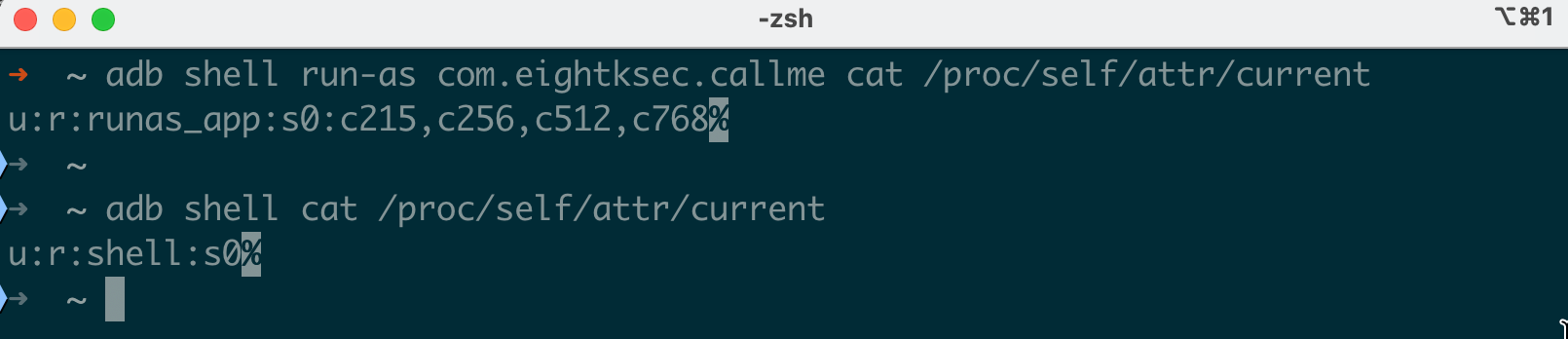
You can also check the context of any file your process can see:
$ adb shell ls -Z /data/local/tmp/
u:object_r:shell_data_file:s0  test_binary
u:object_r:shell_data_file:s0  exploit.sh

$ adb shell ls -Z /system/bin/ls
u:object_r:system_file:s0  /system/bin/ls

$ adb shell su -c 'ls -Z /vendor/bin/hw/'
u:object_r:hal_audio_default_exec:s0   android.hardware.audio.service
u:object_r:hal_camera_default_exec:s0  android.hardware.camera.provider@2.7-service
Deep Dive: Parsing AVC Denial Messages
Before we get into bypass techniques, you need to be able to read what SELinux is actually telling you. Every time SELinux blocks an operation, it logs an AVC (Access Vector Cache) denial message. These messages look cryptic at first, but once you know the format, they’re the single most useful debugging tool you have.
The Anatomy of an AVC Denial
Here’s a real denial message:
avc: denied { read write } for pid=8821 comm="exploit_poc"
  name="mem" dev="proc" ino=4026532085
  scontext=u:r:shell:s0
  tcontext=u:object_r:proc_mem:s0
  tclass=file
  permissive=0
Let’s break down every field:
| Field | Value | Meaning |
|---|---|---|
denied { read write } | The denied permissions | The process tried to read and write |
pid=8821 | Process ID | The process that was blocked |
comm="exploit_poc" | Process name | The executable name (from /proc/pid/comm) |
name="mem" | Target file name | The file being accessed (in this case /proc/*/mem) |
dev="proc" | Device/filesystem | The filesystem the file is on |
ino=4026532085 | Inode number | Unique identifier for the file |
scontext=u:r:shell:s0 | Source context | The SELinux label of the process making the request |
tcontext=u:object_r:proc_mem:s0 | Target context | The SELinux label of the resource being accessed |
tclass=file | Target class | The type of object (file, dir, socket, process, etc.) |
permissive=0 | Enforcement mode | 0 = enforcing (blocked), 1 = permissive (logged only) |
So this message tells us: “The process exploit_poc (PID 8821), running in the shell domain, tried to read and write a file labeled proc_mem (which is /proc/*/mem), and was blocked because there’s no allow rule for shell → proc_mem:file { read write }.”
Reading Denials from Different Sources
There are multiple places to find AVC denials:
# From kernel log (requires root)
$ adb shell su -c 'dmesg | grep "avc: denied"'

# From logcat (all buffers : AVC denials go to the main buffer)
$ adb logcat -b all | grep "avc:"

# From the audit log directly
$ adb shell su -c 'cat /proc/kmsg' | grep "avc:"

# Continuous monitoring (useful when running exploit PoCs)
$ adb shell su -c 'dmesg -w | grep "avc:"'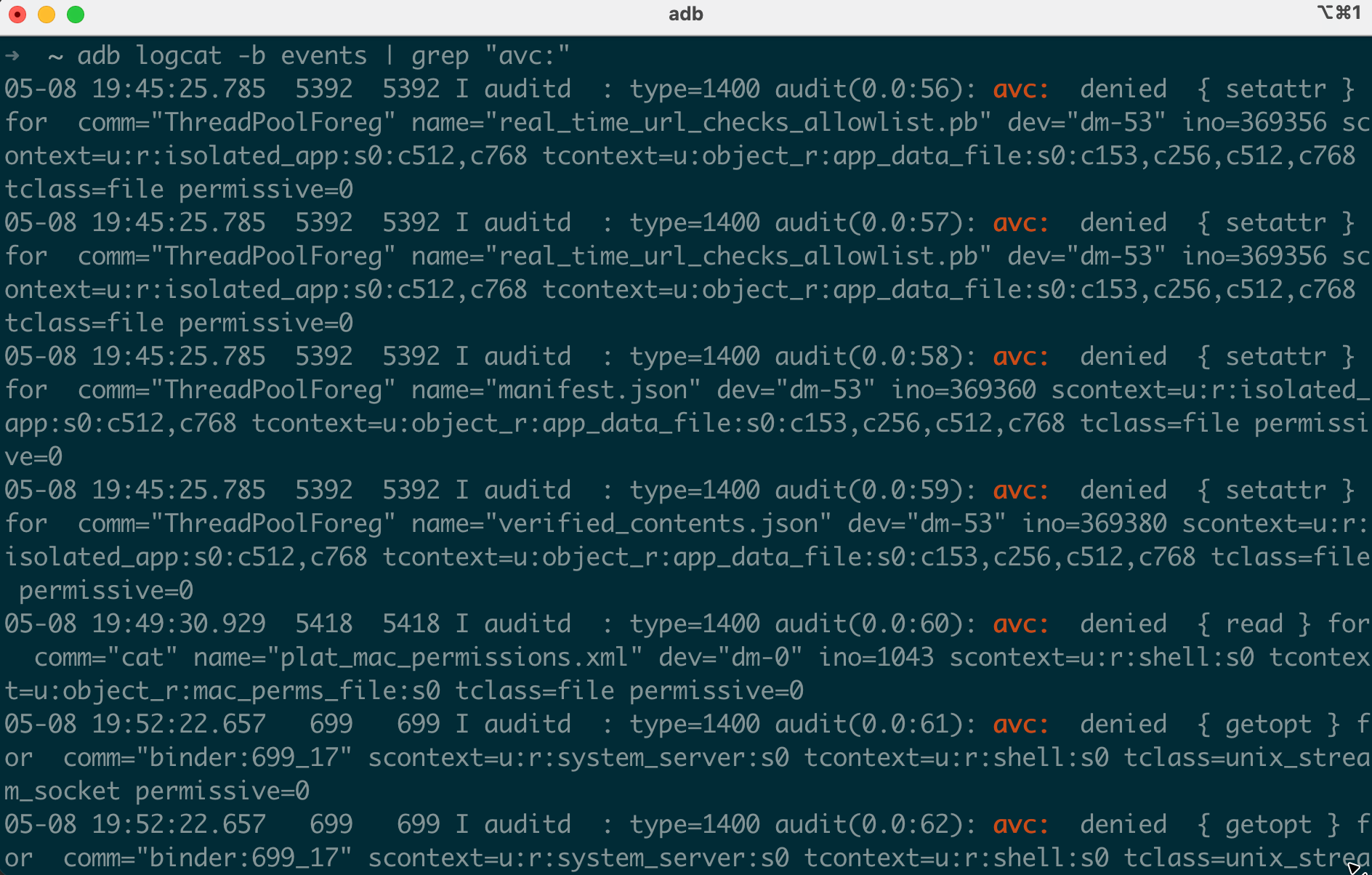
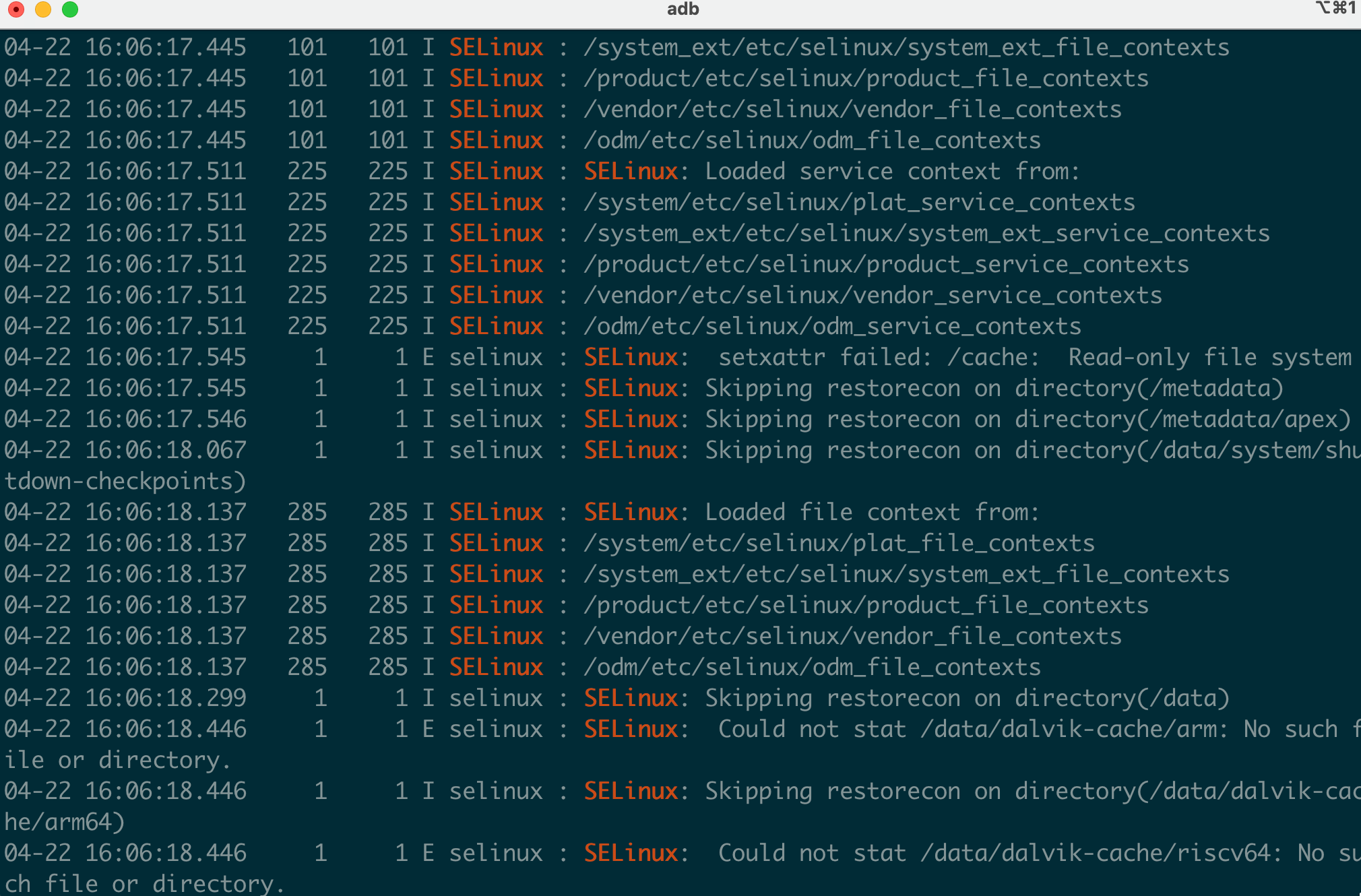
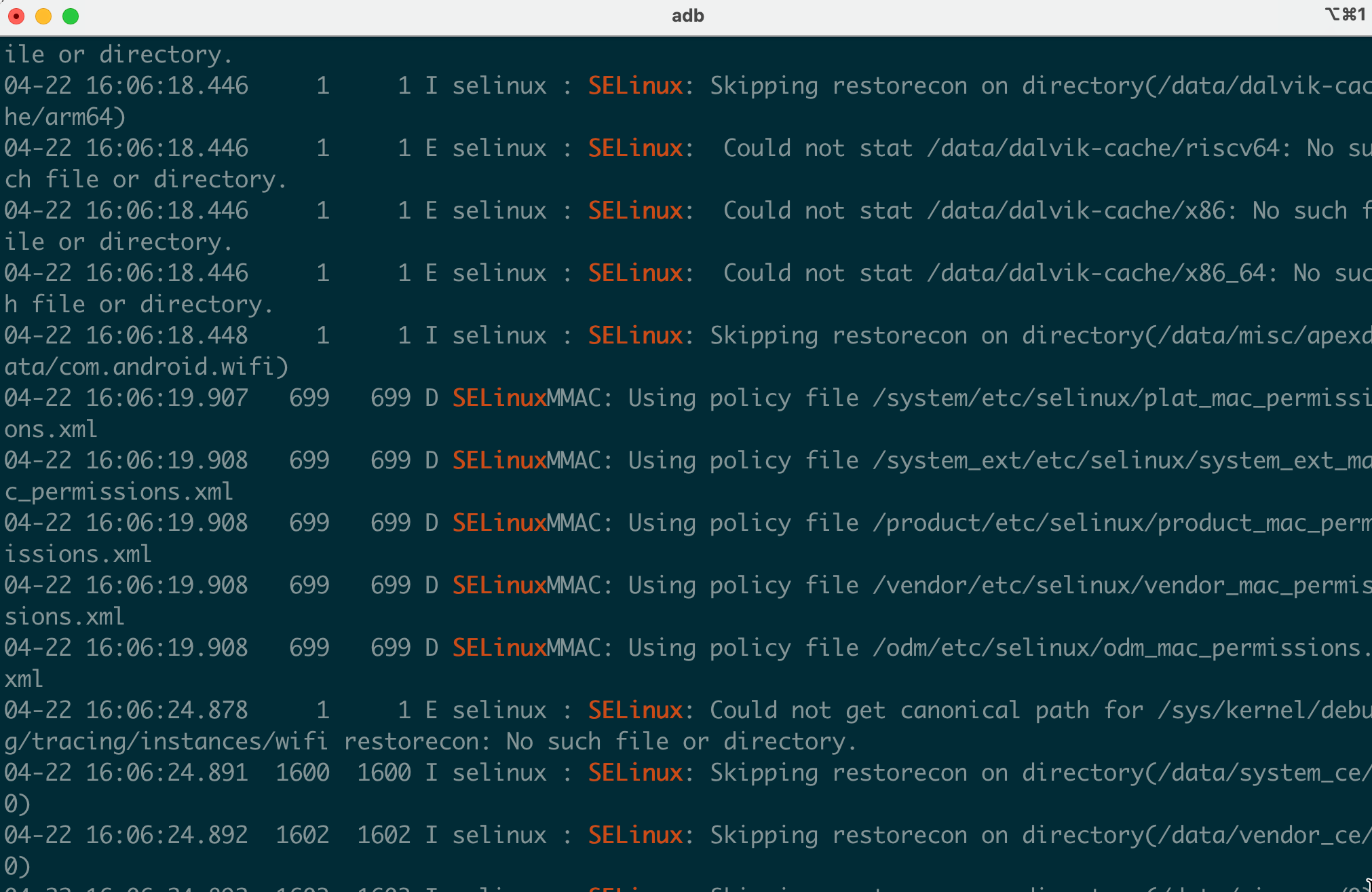
On userdebug/eng builds, denials also appear in logcat without needing root:
$ adb logcat | grep "SELinux"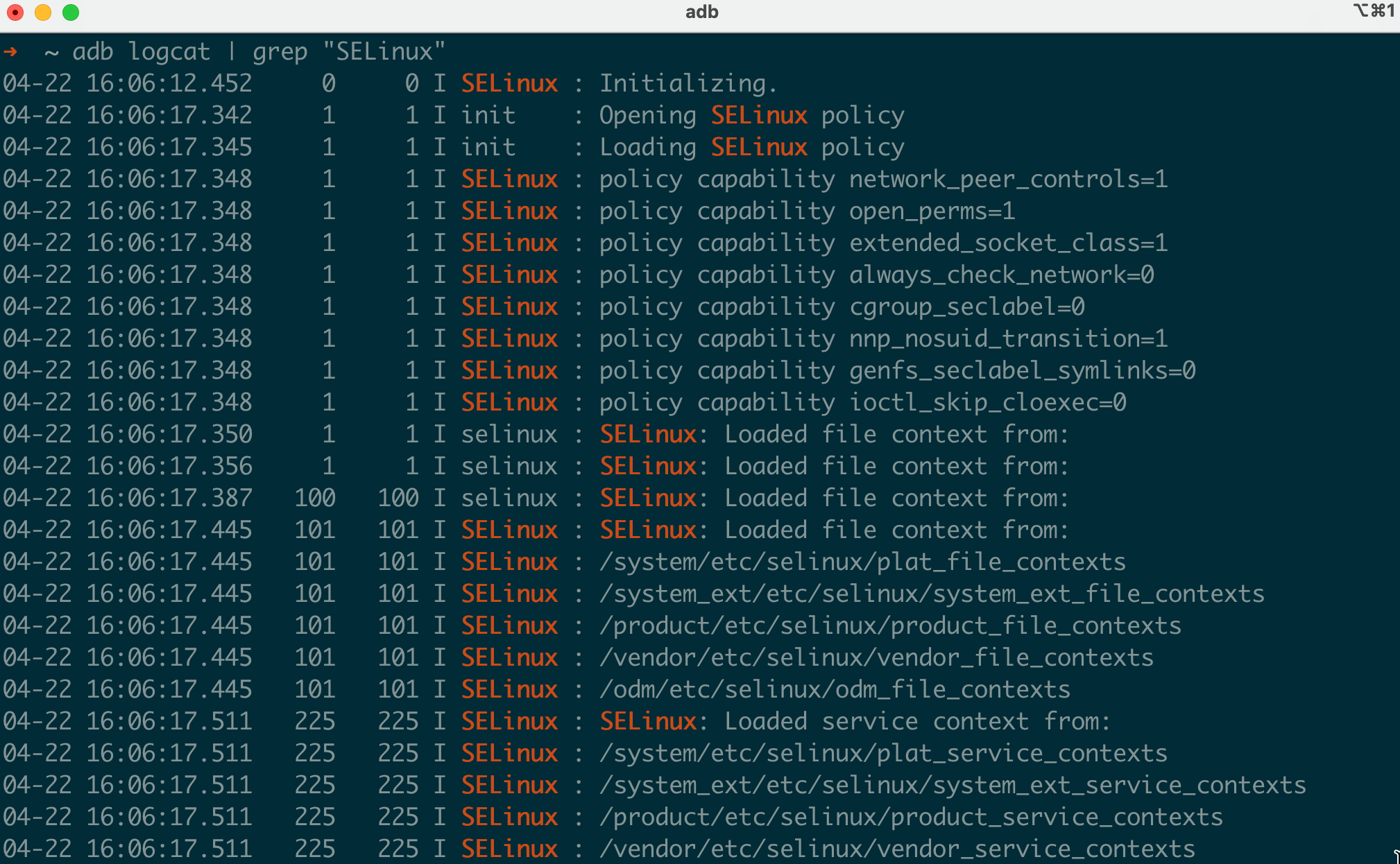
Common Denial Patterns and What They Mean
Here are denial patterns you’ll encounter frequently during security testing:
File execution denied:
avc: denied { execute } for comm="sh" name="poc_binary"
  scontext=u:r:shell:s0 tcontext=u:object_r:shell_data_file:s0 tclass=file
Translation: You pushed a binary to /data/local/tmp/ and tried to run it, but the shell domain can’t execute files labeled shell_data_file. You need execute and likely execute_no_trans permissions.
File access denied after execution:
avc: denied { open } for comm="poc_binary" name="mem"
  scontext=u:r:shell:s0 tcontext=u:object_r:proc_mem:s0 tclass=file
Translation: Your binary is running (execution was allowed or you’re root), but it tried to open /proc/*/mem and the shell domain doesn’t have open permission on proc_mem files.
Socket access denied:
avc: denied { connectto } for comm="poc_binary"
  scontext=u:r:untrusted_app:s0 tcontext=u:r:init:s0 tclass=unix_stream_socket
Translation: Your app tried to connect to a Unix domain socket owned by init. Apps can’t talk directly to init’s sockets.
Device node access:
avc: denied { read write open ioctl } for comm="poc_binary" name="binder"
  scontext=u:r:shell:s0 tcontext=u:object_r:binder_device:s0 tclass=chr_file
Translation: The binary tried to interact with the binder device (/dev/binder). The shell domain doesn’t have character device permissions on binder.
Process operations:
avc: denied { ptrace } for comm="strace"
  scontext=u:r:shell:s0 tcontext=u:r:untrusted_app:s0 tclass=process
Translation: You tried to strace an app process from the shell, but the shell domain can’t ptrace untrusted_app processes.
Using dontaudit Rules to Find Hidden Denials
Here’s something that trips people up: not all denials are logged. The SELinux policy includes dontaudit rules that suppress logging for expected denials. This is done to reduce log noise, but it means you might be getting blocked without seeing any denial message.
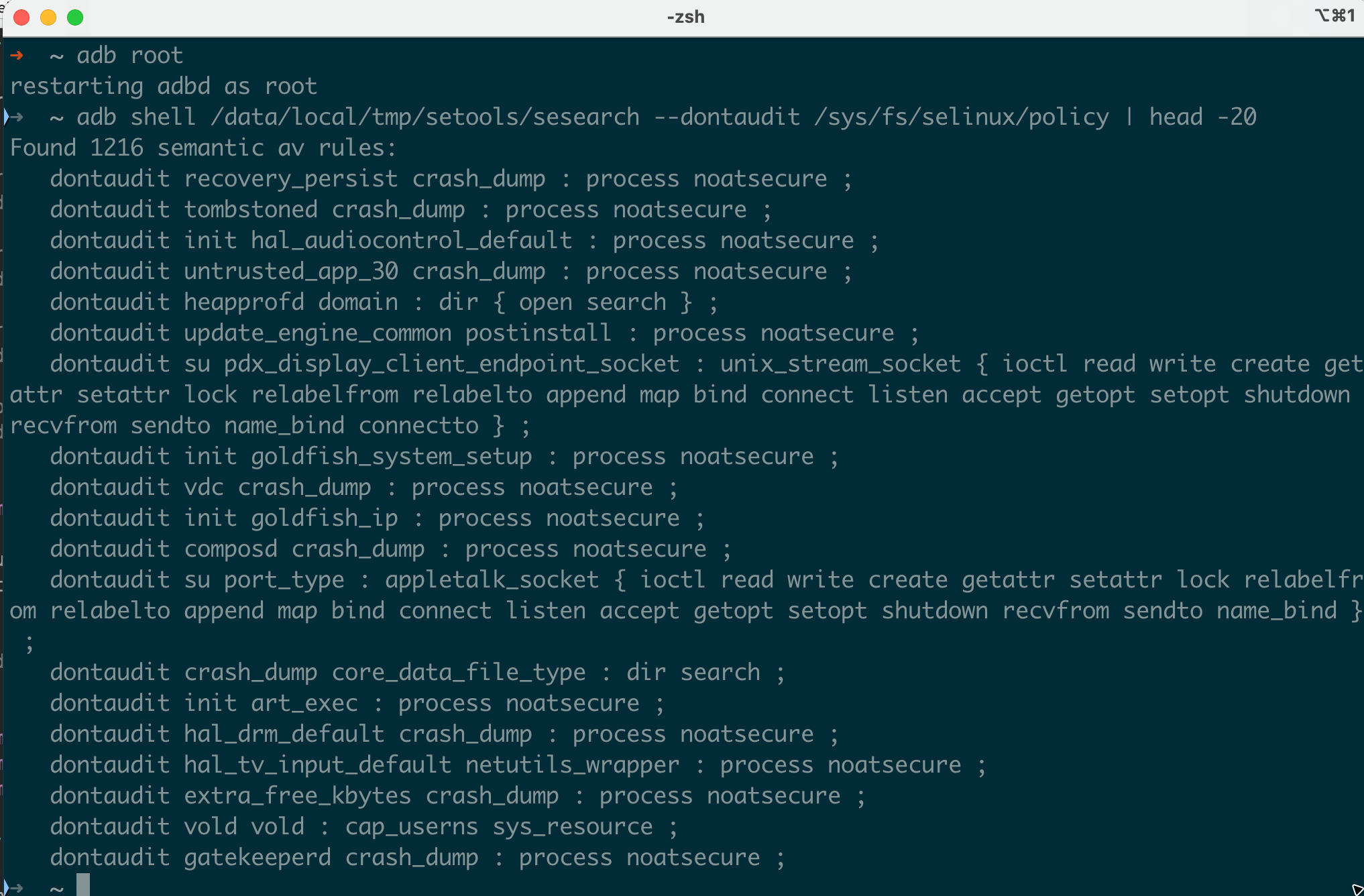
To find all dontaudit rules in a policy, we use sesearch from setools-android. Download the prebuilt binaries for your device architecture and push them to the device:
# Download setools-android from https://github.com/xmikos/setools-android/releases
# Extract and push the sesearch binary for your architecture (x86_64 for x86_64 emulators, arm64 for ARM based emulators and also for physical devices)
$ adb push sesearch /data/local/tmp/
$ adb shell chmod 755 /data/local/tmp/sesearch
Now query the dontaudit rules:
$ adb shell /data/local/tmp/sesearch --dontaudit /sys/fs/selinux/policy | head -20
dontaudit untrusted_app self:capability { net_raw };
dontaudit untrusted_app proc:file { read };
dontaudit shell kernel:system { module_request };
...
To temporarily reveal hidden denials for debugging, the most effective approach is to make the suspect domain permissive. In permissive mode, all denials are logged regardless of dontaudit rules, because the kernel’s audit path bypasses dontaudit suppression for permissive domains:
# Make the domain permissive : all denials are now logged, including dontaudit-suppressed ones:
$ magiskpolicy --live 'permissive untrusted_app'

# Run the operation that's mysteriously failing, then collect all denials:
$ adb shell su -c 'dmesg | grep "avc: denied"'

# Re-enable enforcement when done:
$ magiskpolicy --live 'enforce untrusted_app'
Note: auditallow is not the right tool here and it only logs when access is granted, not when it’s denied. It cannot reveal dontaudit-suppressed denials.
On a typical Android 16 device, there are over 1,000 dontaudit rules. When you’re debugging a mysterious failure that doesn’t produce any AVC denials, hidden dontaudit rules are often the culprit.
Changing SELinux Contexts on a Rooted Device
With root access on a device (whether through Magisk, KernelSU, or an engineering build), you can manipulate SELinux contexts directly. This is essential for security research : testing what an app could do if it escaped its sandbox, or preparing an exploit binary to run in the right context.
Changing File Contexts with chcon
The chcon command changes the SELinux label on a file. For example, if you push a binary to the device and want it labeled as a system file:
$ adb push exploit_poc /data/local/tmp/
$ adb shell su -c 'chcon u:object_r:system_file:s0 /data/local/tmp/exploit_poc'
$ adb shell ls -Z /data/local/tmp/exploit_poc
u:object_r:system_file:s0  /data/local/tmp/exploit_poc
This is useful because many SELinux policy rules restrict access based on the target file’s label. An exploit binary labeled shell_data_file may not be executable by certain processes, but relabeling it to a type the process is allowed to execute can get around that restriction.
Common context changes for research:
# Label a binary as a vendor file (useful for triggering vendor-domain transitions)
$ adb shell su -c 'chcon u:object_r:vendor_file:s0 /data/local/tmp/my_binary'

# Label a shared library to match system expectations
$ adb shell su -c 'chcon u:object_r:system_lib_file:s0 /data/local/tmp/libexploit.so'

# Label a binary as an executable type that the shell can run
$ adb shell su -c 'chcon u:object_r:shell_exec:s0 /data/local/tmp/my_binary'

# Label a directory and all contents recursively
$ adb shell su -c 'chcon -R u:object_r:system_data_file:s0 /data/local/tmp/exploit_dir/'

# Restore default labeling based on file_contexts rules
$ adb shell su -c 'restorecon -v /data/local/tmp/my_binary'
Keep in mind: chcon changes are not persistent across a restorecon or relabel operation. The device may restore original labels on reboot depending on the init scripts.
Understanding file_contexts
When you run restorecon, the system consults the file_contexts files to determine what label a file should have based on its path. These are regex-based rules:
$ adb shell cat /system/etc/selinux/plat_file_contexts | head -30
/system(/.*)?                   u:object_r:system_file:s0
/system/bin/sh                  u:object_r:shell_exec:s0
/system/bin/app_process32       u:object_r:zygote_exec:s0
/system/bin/app_process64       u:object_r:zygote_exec:s0
/system/bin/surfaceflinger      u:object_r:surfaceflinger_exec:s0
/system/bin/init                u:object_r:init_exec:s0
/mnt/vendor(/.*)?               u:object_r:mnt_vendor_file:s0
/data(/.*)?                     u:object_r:system_data_file:s0
/data/local/tmp(/.*)?           u:object_r:shell_data_file:s0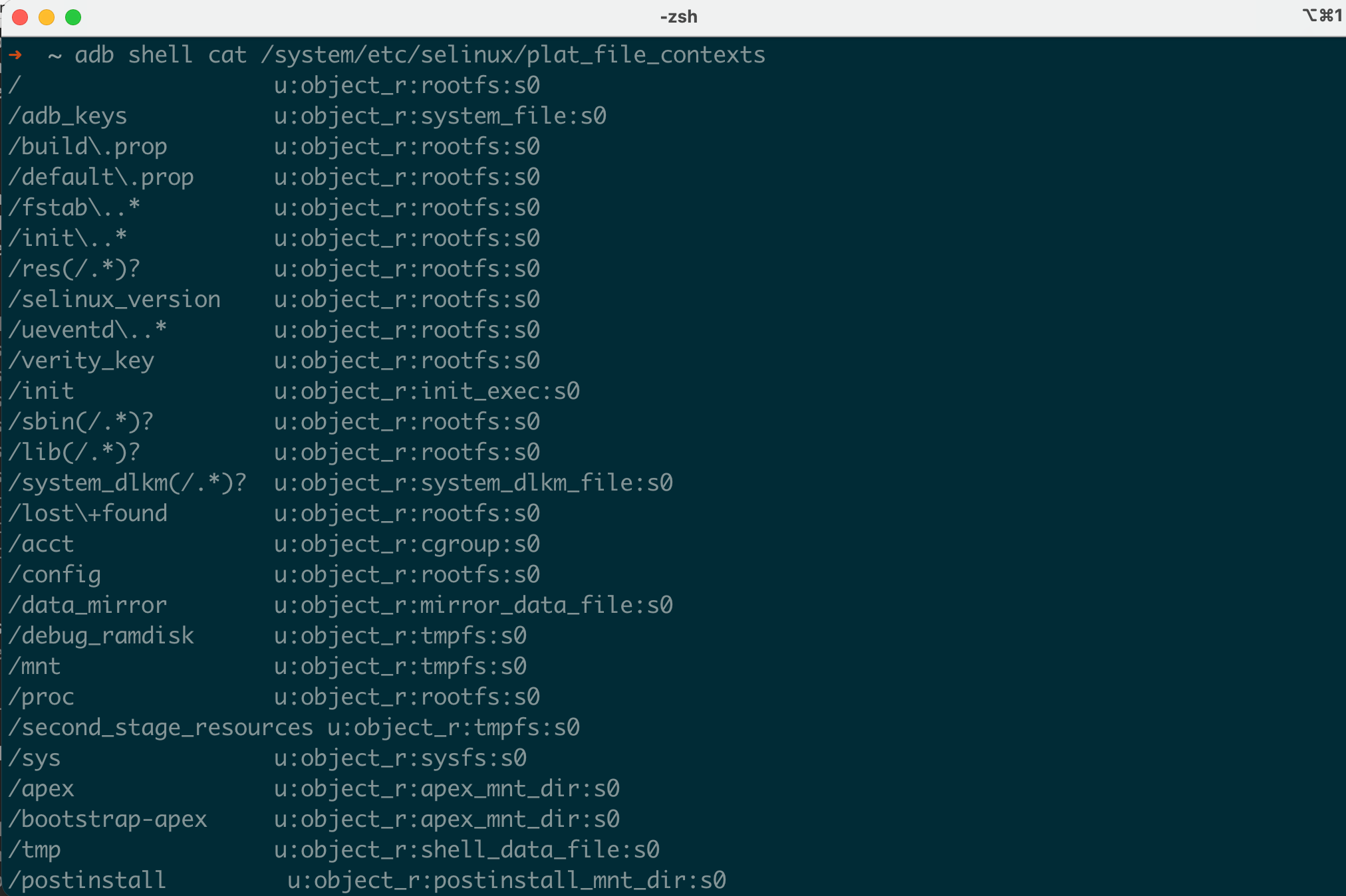
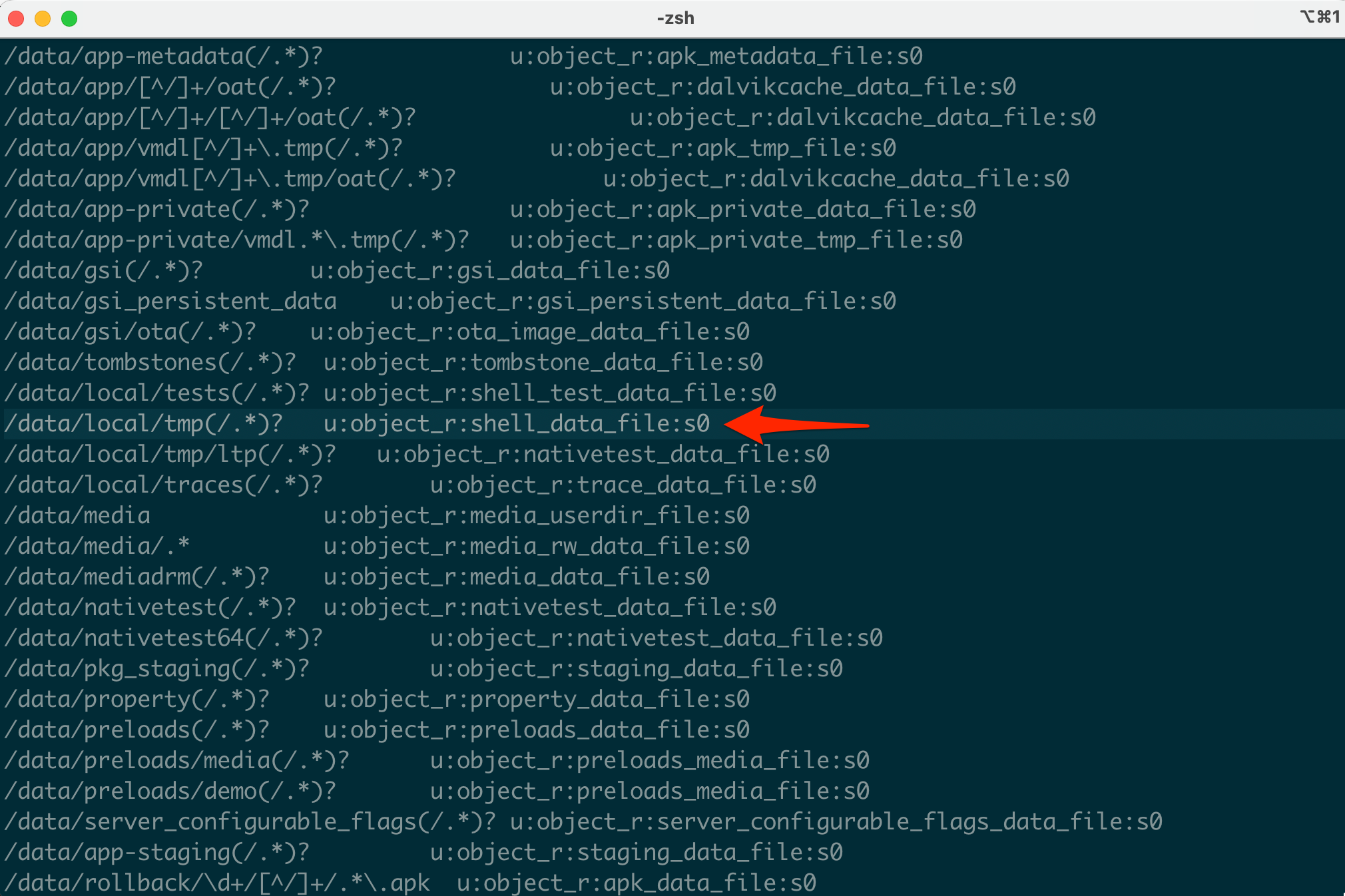
This is why everything you push to /data/local/tmp/ gets labeled shell_data_file by default. The path-based rule overrides everything. If you chcon something and then restorecon it, it goes back to whatever file_contexts says.
Vendor-specific labels are in a separate file:
$ adb shell cat /vendor/etc/selinux/vendor_file_contexts | head -10
/vendor/bin/hw/android\.hardware\.camera\.provider.*    u:object_r:hal_camera_default_exec:s0
/vendor/bin/hw/android\.hardware\.audio\.service.*      u:object_r:hal_audio_default_exec:s0
/vendor/lib(64)?/egl(/.*)?                              u:object_r:same_process_hal_file:s0
Running Processes in a Different Context with runcon
The runcon command launches a process under a specified SELinux context. This is how you can test what happens when a binary runs as, say, system_server or priv_app.
There’s an important catch: runcon is subject to multiple SELinux checks. For runcon to succeed, the following must all be true:
- The calling domain must have
transitionpermission to the target domain (process { transition setexec }) - The target domain must have
entrypointpermission on the binary’s file type (e.g.,file { entrypoint }) - The target domain must be able to use the inherited file descriptors from the adb session (e.g.,
fd { use },unix_stream_socket { read write },devpts chr_file { read write })
On a device in enforcing mode with stock policy, running runcon from the shell domain will fail because there are no rules allowing the transition:
$ adb shell runcon u:r:init:s0 /system/bin/sh
runcon: Could not set context to 'u:r:init:s0': Permission denied

# Check the denial:
$ adb shell su -c 'dmesg | grep "avc: denied" | tail -1'
avc: denied { transition } for pid=9201 comm="runcon"
  scontext=u:r:shell:s0 tcontext=u:r:init:s0 tclass=process
On a rooted device with Magisk, the su process runs in the magisk domain (u:r:magisk:s0), which has broad transition permissions. However, the target domain still needs entrypoint and output permissions. You need to inject those rules first:
# Allow magisk to transition to the target domain
$ adb shell su -c 'magiskpolicy --live "allow magisk system_app process { transition dyntransition setexec }"'

# Allow the target domain to execute the binary (id is part of toybox)
$ adb shell su -c 'magiskpolicy --live "allow system_app toolbox_exec file { entrypoint execute read open getattr map }"'

# Allow the target domain to use inherited adb file descriptors and write output
$ adb shell su -c 'magiskpolicy --live "allow system_app adbd fd { use }"'
$ adb shell su -c 'magiskpolicy --live "allow system_app adbd unix_stream_socket { read write }"'
$ adb shell su -c 'magiskpolicy --live "allow system_app devpts chr_file { read write open getattr ioctl }"'

# Now runcon works:
$ adb shell su -c 'runcon u:r:system_app:s0 id'
uid=0(root) gid=0(root) groups=0(root) context=u:r:system_app:s0
A practical research use case: testing whether a particular device node is accessible from a specific domain:
# Can cameraserver access the GPU device?
# (after adding the entrypoint/fd rules for cameraserver)
$ adb shell su -c 'runcon u:r:cameraserver:s0 ls -la /dev/mali0'

# Can untrusted_app read /proc/version?
$ adb shell su -c 'runcon u:r:untrusted_app:s0:c512,c768 cat /proc/version'
Modifying seapp_contexts Directly
On a rooted device with a writable /system partition (or via Magisk’s overlay mechanism), you can edit seapp_contexts to force your app into a more privileged domain:
# Add a rule that maps your specific app to system_app domain
user=_app seinfo=default name=com.yourapp.research domain=system_app type=system_app_data_file levelFrom=user
This rule must be placed above the generic untrusted_app catch-all. After rebooting (or restarting Zygote), your app will launch in the system_app domain.
Here’s the complete workflow on a Magisk device:
# 1. Pull the current seapp_contexts
$ adb shell su -c 'cat /system/etc/selinux/plat_seapp_contexts' > /tmp/seapp_contexts

# 2. Edit it and add your custom rule above the untrusted_app catch-all
# (Use your preferred text editor)
# Add this line before "user=_app domain=untrusted_app":
# user=_app seinfo=default name=com.yourapp.research domain=system_app type=system_app_data_file levelFrom=user

# 3. Push it back (requires writable /system or Magisk overlay)
$ adb push /tmp/seapp_contexts /data/local/tmp/
$ adb shell su -c 'mount -o rw,remount /system' 2>/dev/null  # May not work on modern devices
$ adb shell su -c 'cp /data/local/tmp/seapp_contexts /system/etc/selinux/plat_seapp_contexts'

# 4. Reboot to apply
$ adb reboot

# 5. Verify after reboot
$ adb shell ps -Z | grep com.yourapp.research
u:r:system_app:s0  u0_a168  5231  573  com.yourapp.research
On modern devices with dm-verity and AVB, modifying /system directly isn’t possible without disabling verified boot. The Magisk overlay approach (using system.prop and module mounts) is more practical but doesn’t directly support seapp_contexts modification. In that case, you’d combine a seapp_contexts change with magiskpolicy rules to create the necessary policy permissions.
SELinux Policy Modification with Modern Root Solutions
The days of simply running setenforce 0 are over on most production devices. Samsung’s Knox, Google’s hardware-backed attestation, and dm-verity all make it impractical to just flip SELinux to permissive mode. Modern root solutions take a much more surgical approach.
Magisk: magiskpolicy
Magisk’s approach to SELinux is one of the most elegant pieces of engineering in the Android rooting ecosystem. Rather than disabling SELinux entirely, Magisk patches the policy in memory to add the specific rules it needs.
The tool responsible for this is magiskpolicy (also accessible as supolicy for legacy compatibility). It operates on the compiled binary policy, either patching it live or generating a modified version for injection during boot.
Getting magiskpolicy on Your Device
On some Magisk versions, magiskpolicy may not be available as a standalone binary on the device and it might not be listed as an available applet when you run magisk --list. In that case, you can extract it from the official Magisk APK and push it manually:
# Download the Magisk APK matching your installed version from:
# https://github.com/topjohnwu/Magisk/releases
# Extract the magiskpolicy binary for your architecture (use x86_64 for emulators, arm64-v8a for ARM based emulators and physical devices)
$ unzip Magisk-*.apk lib/x86_64/libmagiskpolicy.so -d /tmp/magisk_extract
# Push it to the device and make it executable
$ adb push /tmp/magisk_extract/lib/x86_64/libmagiskpolicy.so /data/local/tmp/magiskpolicy
$ adb shell su -c 'chmod 755 /data/local/tmp/magiskpolicy'
# Verify it works
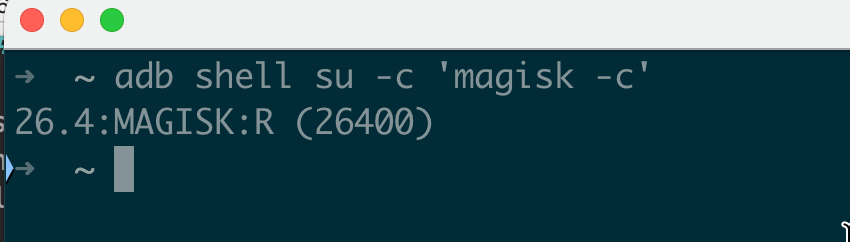
$ adb shell su -c '/data/local/tmp/magiskpolicy --help'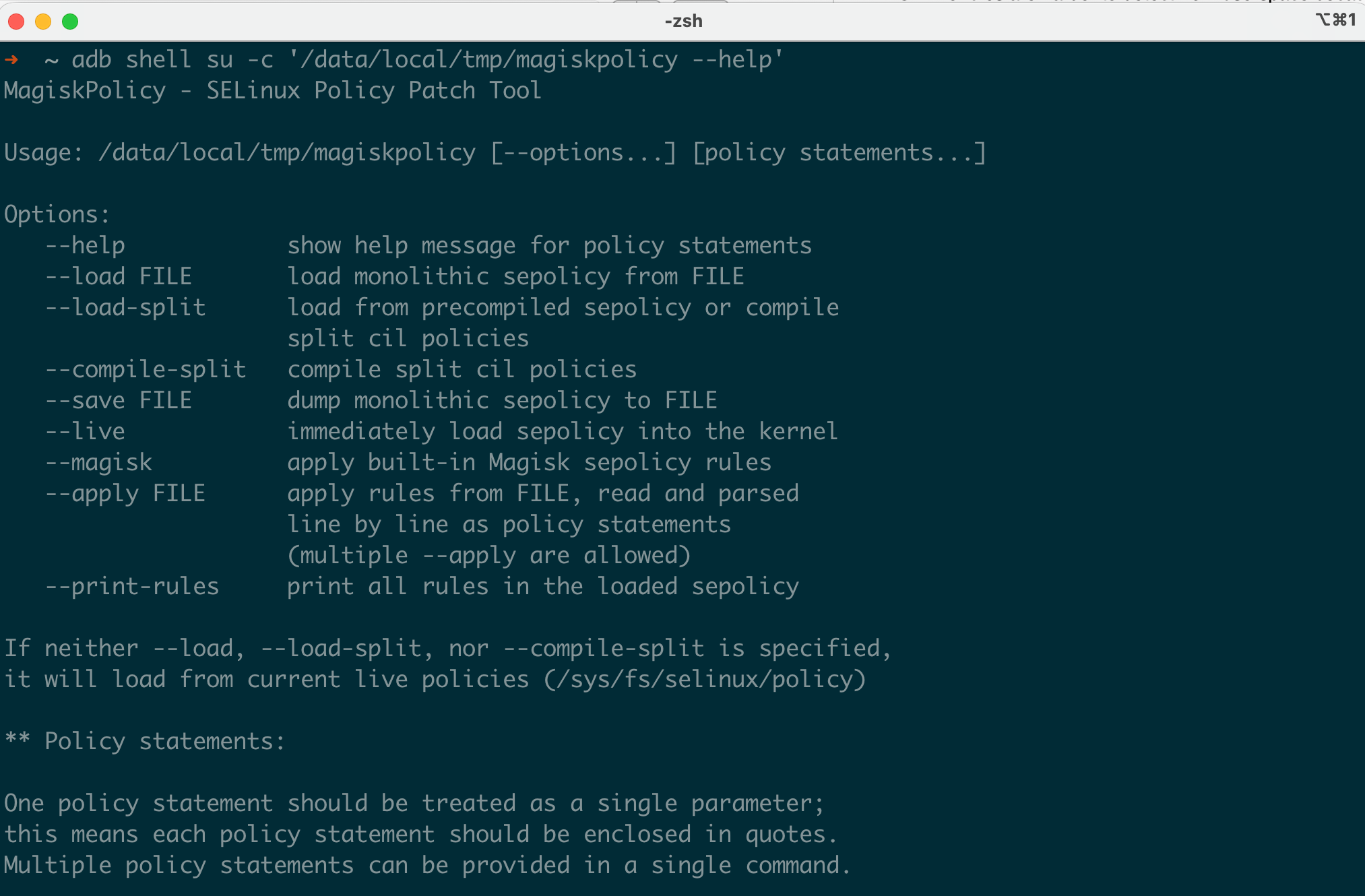 Note: Make sure the Magisk APK version matches (or is close to) the Magisk version installed on your device. You can check your installed version with
 adb shell su -c 'magisk -c'.
Basic Rule Syntax
# Basic allow rule
$ magiskpolicy --live 'allow su * * *'

# More specific: allow shell domain to read /proc files of any process
$ magiskpolicy --live 'allow shell domain file { read open getattr }'

# Make a domain permissive (logs but doesn't enforce)
$ magiskpolicy --live 'permissive untrusted_app'

# Make a domain enforcing again
$ magiskpolicy --live 'enforce untrusted_app'

# Deny rule (remove an existing allow)
$ magiskpolicy --live 'deny untrusted_app shell_data_file file execute'

# Audit allow (log when permission IS granted , useful for tracking access patterns)
$ magiskpolicy --live 'auditallow untrusted_app app_data_file file { read write }'

# Don't audit (suppress denial logging , hide your tracks from dmesg)
$ magiskpolicy --live 'dontaudit shell proc_meminfo file { read write }'
Creating Custom Types and Transitions
This is where magiskpolicy gets powerful for research. You can create entirely new SELinux types:
# Create a brand new type with the domain attribute
$ magiskpolicy --live 'type myexploit_t domain'

# Make it permissive (allows everything, just logs)
$ magiskpolicy --live 'permissive myexploit_t'

# Assign additional attributes (needed for network access, IPC, etc.)
$ magiskpolicy --live 'typeattribute myexploit_t mlstrustedsubject'
$ magiskpolicy --live 'typeattribute myexploit_t netdomain'

# Give it specific permissions
$ magiskpolicy --live 'allow myexploit_t shell_data_file file { read write open execute execute_no_trans map getattr }'
$ magiskpolicy --live 'allow myexploit_t device chr_file { read write open ioctl }'
$ magiskpolicy --live 'allow myexploit_t myexploit_t capability { sys_rawio sys_admin sys_ptrace net_raw }'
$ magiskpolicy --live 'allow myexploit_t proc file { read open }'
$ magiskpolicy --live 'allow myexploit_t proc_meminfo file { read write open }'
$ magiskpolicy --live 'allow myexploit_t sysfs file { read open }'

# Set up automatic domain transition:
# When shell executes a file labeled myexploit_exec_t, transition to myexploit_t
$ magiskpolicy --live 'type myexploit_exec_t file_type'
$ magiskpolicy --live 'type_transition shell myexploit_exec_t process myexploit_t'
$ magiskpolicy --live 'allow shell myexploit_t process transition'
$ magiskpolicy --live 'allow myexploit_t myexploit_exec_t file { entrypoint }'
$ magiskpolicy --live 'allow shell myexploit_exec_t file { read open getattr execute }'

# Label your binary with the new exec type
$ adb shell su -c 'chcon u:object_r:myexploit_exec_t:s0 /data/local/tmp/exploit_poc'

# Now when you run it from shell, it automatically transitions to myexploit_t:
$ adb shell /data/local/tmp/exploit_poc
# Process now runs as u:r:myexploit_t:s0
Extended Permissions (ioctl Filtering)
Modern SELinux supports ioctl whitelisting and fine-grained control over which ioctl commands a domain can issue. magiskpolicy supports this:
# Allow specific ioctl commands (xperm rules)
$ magiskpolicy --live 'allowxperm shell device chr_file ioctl { 0x6601 0x6602 }'

# Allow all ioctls from a domain to a type
$ magiskpolicy --live 'allowxperm shell binder_device chr_file ioctl { 0x0000-0xFFFF }'
This matters because some exploits need to issue specific ioctl commands to kernel drivers, and even if the basic ioctl permission is granted, the xperm filter might block the specific command number.
genfscon Rules
For filesystems that don’t have file-level labels (like proc, sysfs, and debugfs), labels are assigned by genfscon rules:
# These control what label /proc/kallsyms gets, for example
$ magiskpolicy --live 'genfscon proc /kallsyms u:object_r:proc_kallsyms:s0'
$ magiskpolicy --live 'genfscon debugfs / u:object_r:debugfs:s0'
The --live flag patches the currently loaded policy in the kernel. Without it, magiskpolicy writes a modified policy file that gets loaded during boot.
Persistent Rules with Magisk Modules
Magisk modules can ship their own SELinux rules in a file called sepolicy.rule inside the module directory. During boot, Magisk combines all module rules with the base policy before it gets loaded:
# Example: /data/adb/modules/my_module/sepolicy.rule
allow my_daemon system_file file { read open getattr }
allow my_daemon tmpfs dir { search read }
allow my_daemon init unix_stream_socket connectto
How magiskpolicy Works Internally
It’s worth understanding what magiskpolicy actually does under the hood, because this explains its capabilities and limitations.
The compiled SELinux policy on Android is a binary blob stored in /sys/fs/selinux/policy (for the currently loaded policy) and in /vendor/etc/selinux/ and /system/etc/selinux/ (for the on-disk policy files). This binary format contains:
- A type table mapping type names to numeric IDs
- An AV rule table containing all allow/deny/auditallow/dontaudit rules
- A role table mapping roles to types
- A class table defining object classes and their permissions
- Various other tables (constraints, MLS levels, etc.)
When you run magiskpolicy --live 'allow shell proc_mem file { read write }', it:
- Opens
/sys/fs/selinux/policyto read the current binary policy - Parses the binary format to locate the AV rule table
- Looks up the numeric IDs for
shell,proc_mem,file,read, andwrite - Adds a new AV rule entry with those IDs and the “allow” flag
- Writes the modified binary policy back to
/sys/fs/selinux/load
The kernel accepts the new policy and starts enforcing it immediately. No reboot required.
The limitation: magiskpolicy cannot bypass kernel-level protections that prevent policy reloading. On some Samsung devices, the kernel validates a hash of the policy before loading it, which would prevent tampered policies from being accepted. Magisk handles this by patching the policy during early boot, before the integrity check is set up.
KernelSU: Kernel-Level Policy Injection
KernelSU takes a fundamentally different approach since it lives inside the kernel itself, it can directly manipulate the SELinux subsystem without needing to go through the userspace policy loading interface.
KernelSU creates a custom domain called KERNEL_SU_DOMAIN (which resolves to su) and assigns it attributes that effectively make it unrestricted:
// From KernelSU source: kernel/selinux/rules.c
void apply_kernelsu_rules() {
    // Create the su domain as fully permissive
    ksu_permissive(KERNEL_SU_DOMAIN);

    // Assign network and bluetooth attributes so su can access all networks
    ksu_typeattribute(KERNEL_SU_DOMAIN, "mlstrustedsubject");
    ksu_typeattribute(KERNEL_SU_DOMAIN, "netdomain");
    ksu_typeattribute(KERNEL_SU_DOMAIN, "bluetoothdomain");

    // Allow su domain to do anything to any type, any class, any permission
    ksu_allow(KERNEL_SU_DOMAIN, ALL, ALL, ALL);

    // Allow every domain to transition to su when needed
    ksu_allow(ALL, KERNEL_SU_DOMAIN, "process", "transition");
    ksu_allow(ALL, KERNEL_SU_DOMAIN, "process", "noatsecure");
    ksu_allow(ALL, KERNEL_SU_DOMAIN, "process", "setcurrent");
    ksu_allow(ALL, KERNEL_SU_DOMAIN, "process", "setexec");

    // Allow su to set file contexts
    ksu_allow(KERNEL_SU_DOMAIN, ALL, "file", "relabelfrom");
    ksu_allow(KERNEL_SU_DOMAIN, ALL, "file", "relabelto");
    // ... additional permissive rules
}
The key differences from Magisk:
- These rules are applied inside the kernel’s policy loading code, so they survive userspace policy reloads
- KernelSU hooks
do_execveat_common()andinput_handle_event()to intercept execution and root request triggers - The rules are harder to detect from userspace because they don’t go through the standard
/sys/fs/selinux/loadpath - KernelSU can modify the policydb directly in kernel memory, bypassing any integrity checks on the policy file
KernelSU also supports module-level sepolicy rules using a parser that understands the same syntax as magiskpolicy, so the same sepolicy.rule files work on both. The parser is implemented in Rust using the nom parsing library.
APatch: Hybrid Kernel Patching
APatch is the newest entry in this space, and its architecture is distinct from both Magisk and KernelSU. It uses KernelPatch to inject code into the running kernel, similar to how kernel livepatching works.
For SELinux, APatch takes a hybrid approach:
- Kernel hooks modify the security subsystem at the function level for example, hooking
avc_has_perm()to always return 0 (allowed) for specific source contexts - Userspace magiskpolicy is used for more complex policy modifications that benefit from the standard policy language
The advantage of APatch’s approach: since it hooks the actual security check functions, it works even if the kernel has integrity protections on the policydb. The hook is at a lower layer, and it intercepts the check result, not the policy data.
Comparison of Root Solutions and SELinux
| Feature | Magisk | KernelSU | APatch |
|---|---|---|---|
| Policy modification method | Binary policy patching | Direct policydb manipulation in kernel | Function hooking + policy patching |
| Survives policy reload | No (needs repatch) | Yes | Yes (hooks persist) |
| Bypasses policy integrity checks | During early boot only | Yes (kernel-level) | Yes (hooks below integrity layer) |
| Custom domain creation | Yes | Yes | Yes (via magiskpolicy) |
| Module sepolicy.rule support | Yes | Yes | Yes |
| Detection surface | /sys/fs/selinux/policy differs from on-disk | Hard to detect from userspace | Hard to detect from userspace |
| Root domain name | magisk or u:r:magisk:s0 | u:r:su:s0 | Varies |
Practical: Overcoming SELinux for Exploit Testing
Let’s tie the theoretical material together with a comprehensive practical walkthrough. Say you’re testing a kernel exploit PoC on a rooted Android device and the PoC binary keeps getting blocked by SELinux.
Step 1: Push the Binary and Observe the Failure
$ adb push kernel_poc /data/local/tmp/
$ adb shell chmod 755 /data/local/tmp/kernel_poc
$ adb shell /data/local/tmp/kernel_poc
/system/bin/sh: /data/local/tmp/kernel_poc: Permission denied
Step 2: Check What SELinux is Blocking
$ adb shell su -c 'dmesg | grep "avc: denied"' | tail -5
[  234.567890] avc: denied { execute } for pid=8821 comm="sh" name="kernel_poc" dev="sda17" ino=131245 scontext=u:r:shell:s0 tcontext=u:object_r:shell_data_file:s0 tclass=file permissive=0
This tells us: the shell domain is trying to execute a file labeled shell_data_file, and there’s no allow rule for that.
Step 3: Identify ALL Required Permissions
One denial at a time is tedious. Instead, temporarily make the shell domain permissive, run the binary, and collect all denials at once:
# Make shell permissive (denials are logged but not enforced)
$ adb shell su -c 'magiskpolicy --live "permissive shell"'

# Run the binary — it will now succeed, but all would-be denials are logged
$ adb shell /data/local/tmp/kernel_poc

# Collect all the denials
$ adb shell su -c 'dmesg | grep "avc: denied"' > /tmp/denials.txt

# Re-enable enforcement for shell
$ adb shell su -c 'magiskpolicy --live "enforce shell"'
Now use audit2allow on your host to generate the rules:
$ audit2allow -i /tmp/denials.txt

# Output:
allow shell shell_data_file:file { execute execute_no_trans open read getattr map };
allow shell proc:file { read open };
allow shell proc_meminfo:file { read write open };
allow shell self:capability { sys_rawio sys_admin net_raw sys_ptrace };
allow shell device:chr_file { read write open ioctl };
allow shell sysfs:file { read open };
allow shell kernel:system { module_request };
Step 4: Inject the Rules Precisely
Using magiskpolicy (on a Magisk-rooted device):
Note: When translating audit2allow output to magiskpolicy commands, be aware that self is not a valid keyword in magiskpolicy and replace it with the actual source type name (e.g., allow shell shell capability ... instead of allow shell self capability ...). Also, type names may vary across Android versions and verify types exist on your target device using magiskpolicy --print-rules | grep <type>.
$ adb shell su -c 'magiskpolicy --live "allow shell shell_data_file file { execute execute_no_trans open read getattr map }"'
$ adb shell su -c 'magiskpolicy --live "allow shell proc file { read open }"'
$ adb shell su -c 'magiskpolicy --live "allow shell proc_meminfo file { read write open }"'
$ adb shell su -c 'magiskpolicy --live "allow shell shell capability { sys_rawio sys_admin net_raw sys_ptrace }"'
$ adb shell su -c 'magiskpolicy --live "allow shell device chr_file { read write open ioctl }"'
$ adb shell su -c 'magiskpolicy --live "allow shell sysfs file { read open }"'
$ adb shell su -c 'magiskpolicy --live "allow shell kernel system { module_request }"'

# Don't forget ioctl xperm rules if the binary uses specific ioctls:
$ adb shell su -c 'magiskpolicy --live "allowxperm shell device chr_file ioctl { 0x0000-0xFFFF }"'
Step 5: Alternative : Relabel and Use runcon
If you want the binary to run in a more privileged domain instead of adding rules to shell:
runcon requires the source domain to have transition permission to the target domain, the target domain must have entrypoint permission on the binary’s file type, and the target domain needs permissions for the inherited file descriptors (adb shell session). First, inject the required transition and permission rules for your target domain:
# Example: allowing runcon to init domain
# Allow the magisk (root) domain to transition to init
$ adb shell su -c 'magiskpolicy --live "allow magisk init process { transition dyntransition setexec }"'

# Allow init to execute binaries from /data/local/tmp
$ adb shell su -c 'magiskpolicy --live "allow init shell_data_file file { entrypoint execute read open getattr map }"'

# Allow init to inherit the adb shell session's file descriptors and write output back
$ adb shell su -c 'magiskpolicy --live "allow init adbd fd { use }"'
$ adb shell su -c 'magiskpolicy --live "allow init adbd unix_stream_socket { read write }"'
$ adb shell su -c 'magiskpolicy --live "allow init devpts chr_file { read write open getattr ioctl }"'
Now you can use runcon to execute in the target domain:
# Option A: Run as init (most privileged userspace domain)
$ adb shell su -c 'runcon u:r:init:s0 /data/local/tmp/kernel_poc'

# Option B: Run as system_server (has broad IPC and file access)
# (add the same transition/entrypoint/fd rules for system_server first)
$ adb shell su -c 'runcon u:r:system_server:s0 /data/local/tmp/kernel_poc'

# Option C: Run as vold (has device and mount access)
$ adb shell su -c 'runcon u:r:vold:s0 /data/local/tmp/kernel_poc'

# Option D: Run as vendor_init (has vendor device access)
$ adb shell su -c 'runcon u:r:vendor_init:s0 /data/local/tmp/kernel_poc'
Step 6: Verify Execution
$ adb shell su -c '/data/local/tmp/kernel_poc'
[+] Kernel exploit PoC running
[+] kernel base: 0xffffffc010000000
[+] Current UID: 0
[+] SELinux: permissive
Step 7: Build a Persistent Magisk Module for Testing
For a more comprehensive approach : if you’re testing multiple binaries or running a full exploit chain, create a proper Magisk module:
# Create the module directory structure
$ mkdir -p /tmp/exploit_testing_module/META-INF/com/google/android
$ cat > /tmp/exploit_testing_module/module.prop << 'EOF'
id=exploit_testing
name=Exploit Testing SELinux Rules
version=1.0
versionCode=1
author=researcher
description=SELinux policy modifications for security testing
EOF

# Create the updater-script (required by Magisk)
$ echo '#MAGISK' > /tmp/exploit_testing_module/META-INF/com/google/android/updater-script

# Create the update-binary (Magisk module installer)
# (In practice, copy from another module or use the Magisk module template)

# Create the sepolicy rules file
$ cat > /tmp/exploit_testing_module/sepolicy.rule << 'EOF'
# Allow shell to execute binaries from /data/local/tmp
allow shell shell_data_file file { execute execute_no_trans open read getattr map }

# Allow shell broad file access for testing
allow shell device chr_file { read write open ioctl }
allow shell proc file { read open }
allow shell proc_meminfo file { read write open }
allow shell sysfs file { read open write }
allow shell sysfs dir { read open search }

# Allow shell to use kernel capabilities needed by exploit PoCs
allow shell shell capability { sys_rawio sys_admin net_raw sys_ptrace dac_override dac_read_search }
allow shell shell capability2 { syslog }

# Allow ioctl on all device nodes
allowxperm shell device chr_file ioctl { 0x0000-0xFFFF }

# Create a custom permissive domain for exploit binaries
type exploit_test_t domain
permissive exploit_test_t
typeattribute exploit_test_t mlstrustedsubject

# Transition from shell to exploit_test_t when executing appropriately labeled files
type exploit_test_exec_t file_type
type_transition shell exploit_test_exec_t process exploit_test_t
allow shell exploit_test_t process transition
allow exploit_test_t exploit_test_exec_t file { entrypoint }
allow shell exploit_test_exec_t file { read open getattr execute }
EOF

# Package as a zip and install via Magisk
$ cd /tmp/exploit_testing_module
$ zip -r /tmp/exploit_testing.zip *
$ adb push /tmp/exploit_testing.zip /sdcard/
# Then install via Magisk Manager app, or:
$ adb shell su -c 'magisk --install-module /sdcard/exploit_testing.zip'
$ adb reboot
After reboot, all the SELinux rules are automatically applied. You can then label exploit binaries for automatic domain transition:
$ adb shell su -c 'chcon u:object_r:exploit_test_exec_t:s0 /data/local/tmp/kernel_poc'
$ adb shell /data/local/tmp/kernel_poc
# Runs in u:r:exploit_test_t:s0 (permissive) automatically
Conclusion
In this post, we’ve moved well beyond the SELinux basics covered in Part I and into the practical knowledge you need for real Android security testing:
- The complete chain from APK signing certificate → seinfo tag → seapp_contexts → SELinux domain assignment, including Zygote’s role in applying contexts
- How to read and interpret AVC denial messages, including hidden dontaudit rules
- Practical file and process context manipulation with
chcon,runcon, andfile_contexts - How Magisk, KernelSU, and APatch each take different architectural approaches to SELinux policy modification
- A complete walkthrough for identifying and injecting the SELinux rules needed to run exploit PoCs
- How to build a reusable Magisk module for persistent SELinux testing configurations
With these techniques, you can effectively work with SELinux during pentesting engagements and security research and identifying what’s being blocked, understanding why, and precisely modifying the policy to allow what you need.
But what happens when you don’t have root? What if SELinux is the last thing standing between a kernel memory corruption primitive and full device compromise? In Part III, we’ll cover multiple documented kernel-level techniques for disabling SELinux enforcement, walk through how five real-world exploit chains (including CVE-2024-44068 and CVE-2024-53104) dealt with SELinux, and examine what Android 16 changes for both attackers and defenders.
References
- Part I: Android SELinux Internals
- AOSP SELinux Documentation
- AOSP seapp_contexts
- Magisk Tools Documentation — magiskpolicy
- KernelSU SELinux Rules Source
- setools-android
GET IN TOUCH
Visit our Live and On-Demand Trainings to learn more about our offerings. Please don’t hesitate to reach out through our Contact Us page.
Recommended Training
Offensive Android Internals
Dig into Android internals and reverse engineer APKs, native libraries and system binaries.
Offensive Android Internals
Same syllabus, self-paced. Lifetime access to videos, labs and updates on 8kSec Academy.
Enroll on AcademyGet in Touch
Want to learn these techniques hands-on, or need help assessing your own mobile or AI stack? We run live and on-demand trainings, offer mobile-security certifications, and take on penetration-testing engagements. Pick the door that fits.
We respond within one business day. Visit our events page to see where we'll be next.